Enable the NanoMouse keyboard
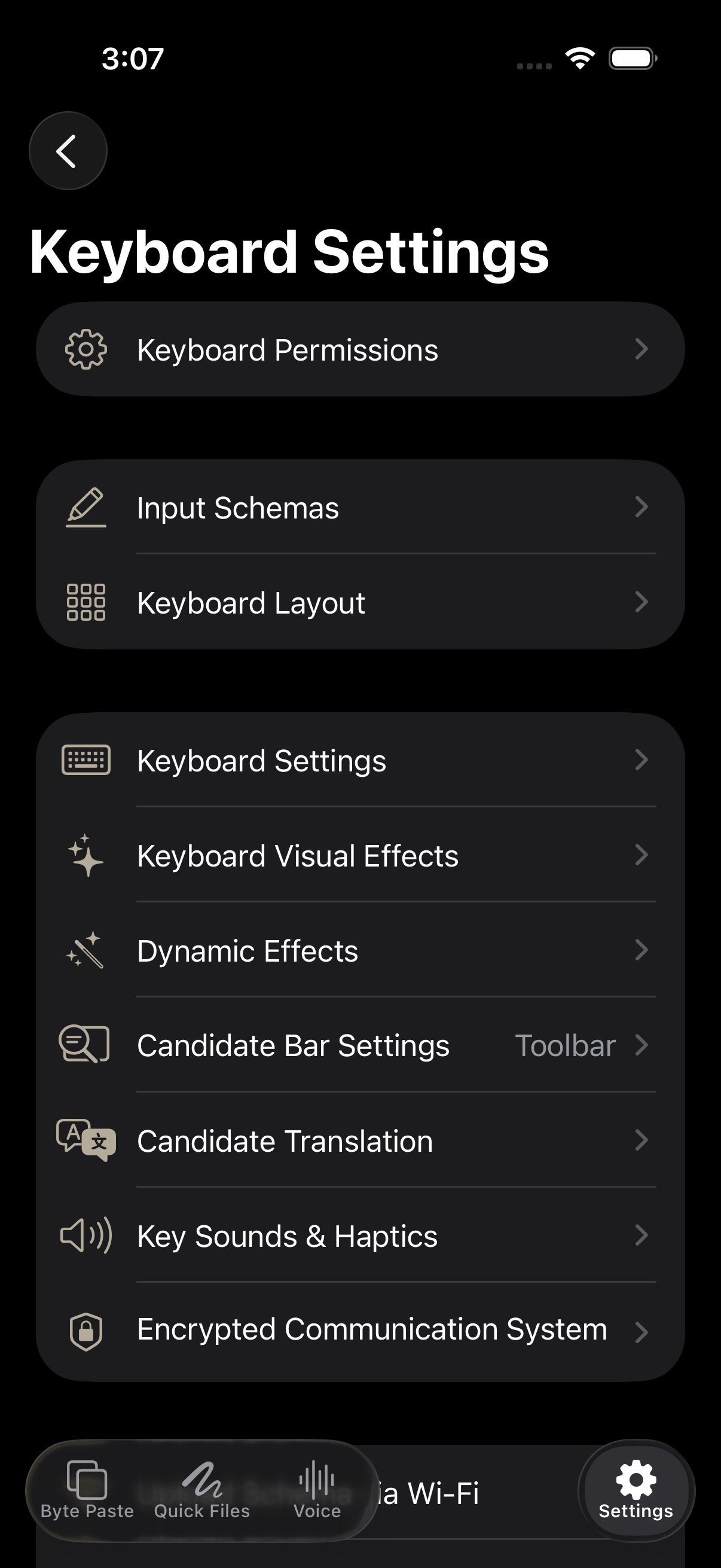
Add the extension in iOS first, then enable the layouts you want inside NanoMouse.
- Add NanoMouse, open any text field, hold the globe key, and select NanoMouse.
- Enable Full Access only when a feature needs network access, shared containers, AI, sync, or Byte Paste.
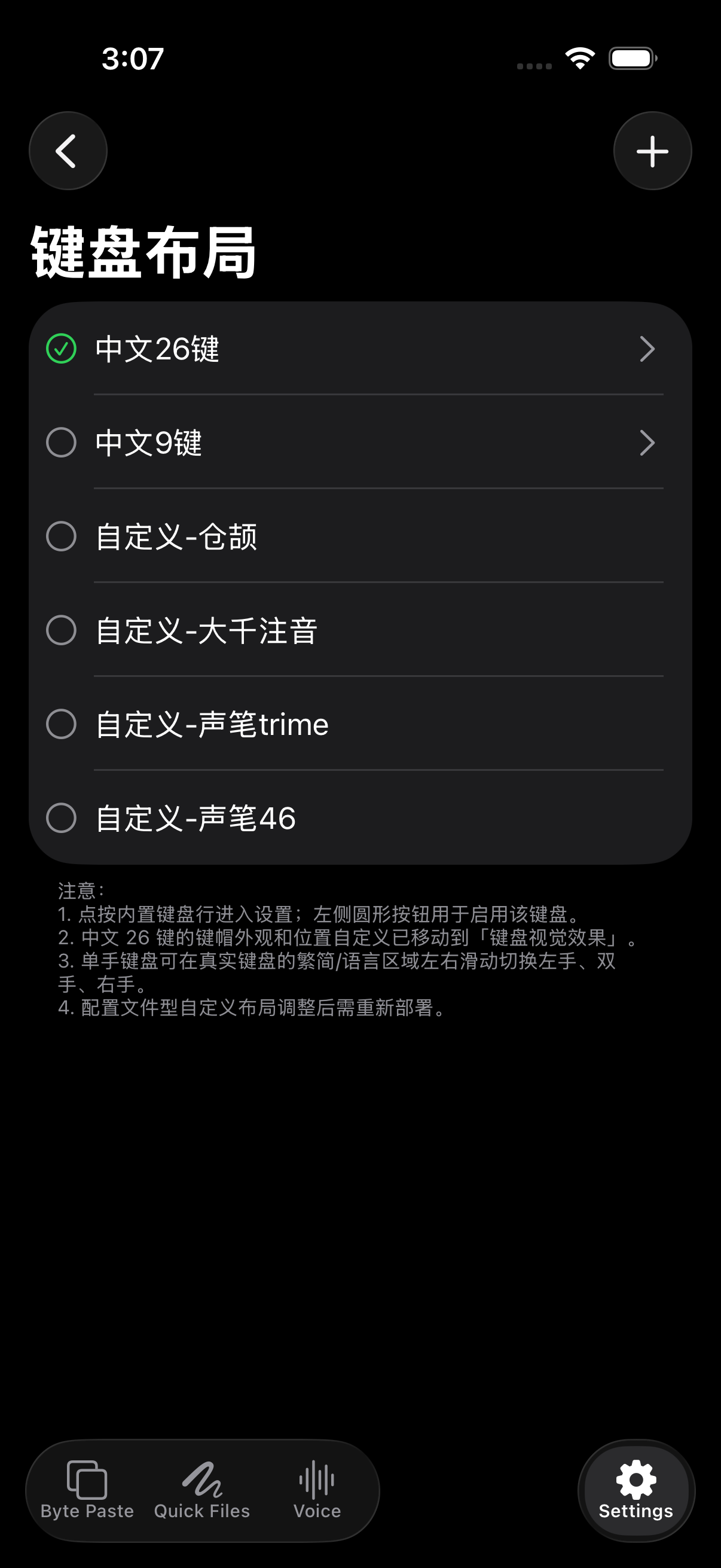
- In NanoMouse, open Settings → Keyboard Layout and enable Chinese 26-key, Chinese 9-key, or a custom layout.
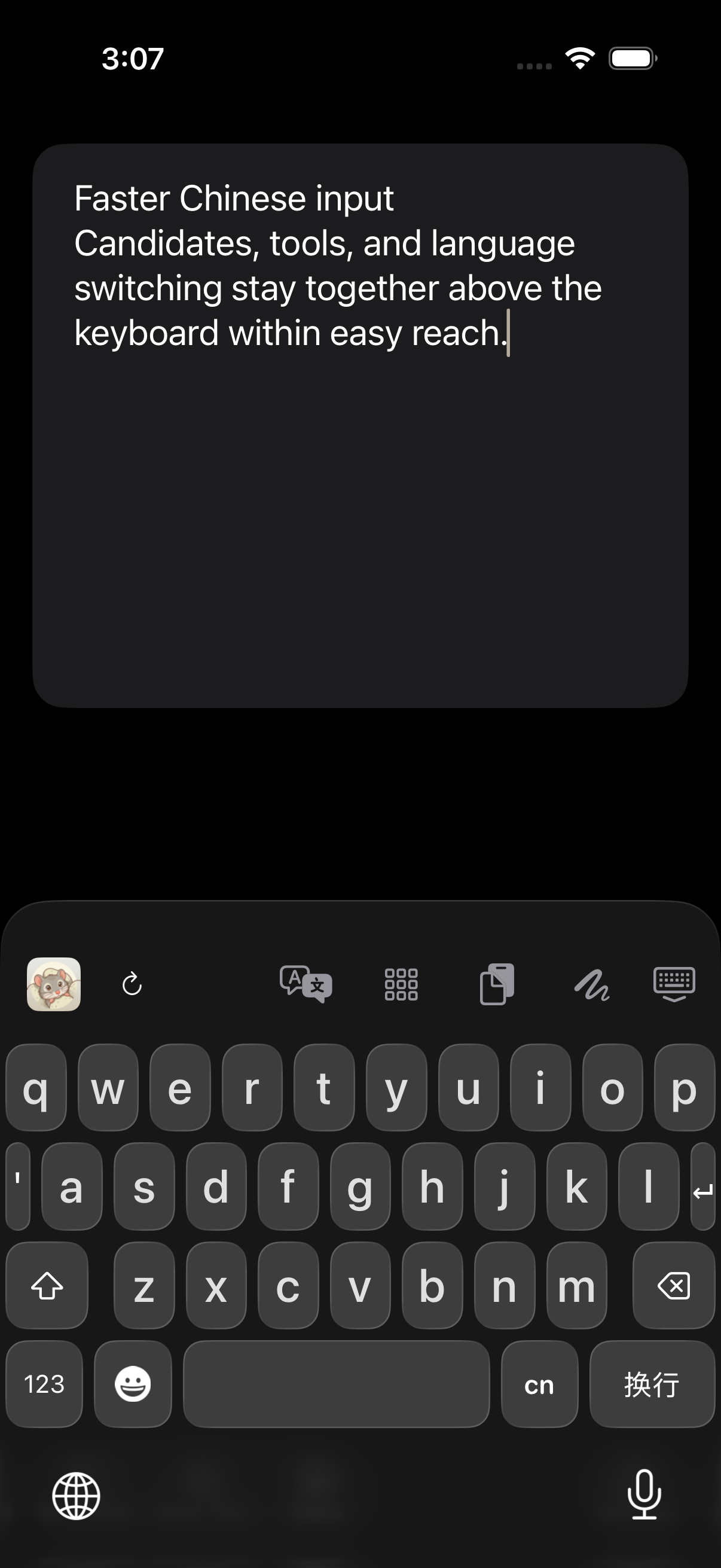
Chinese 26-key keyboard
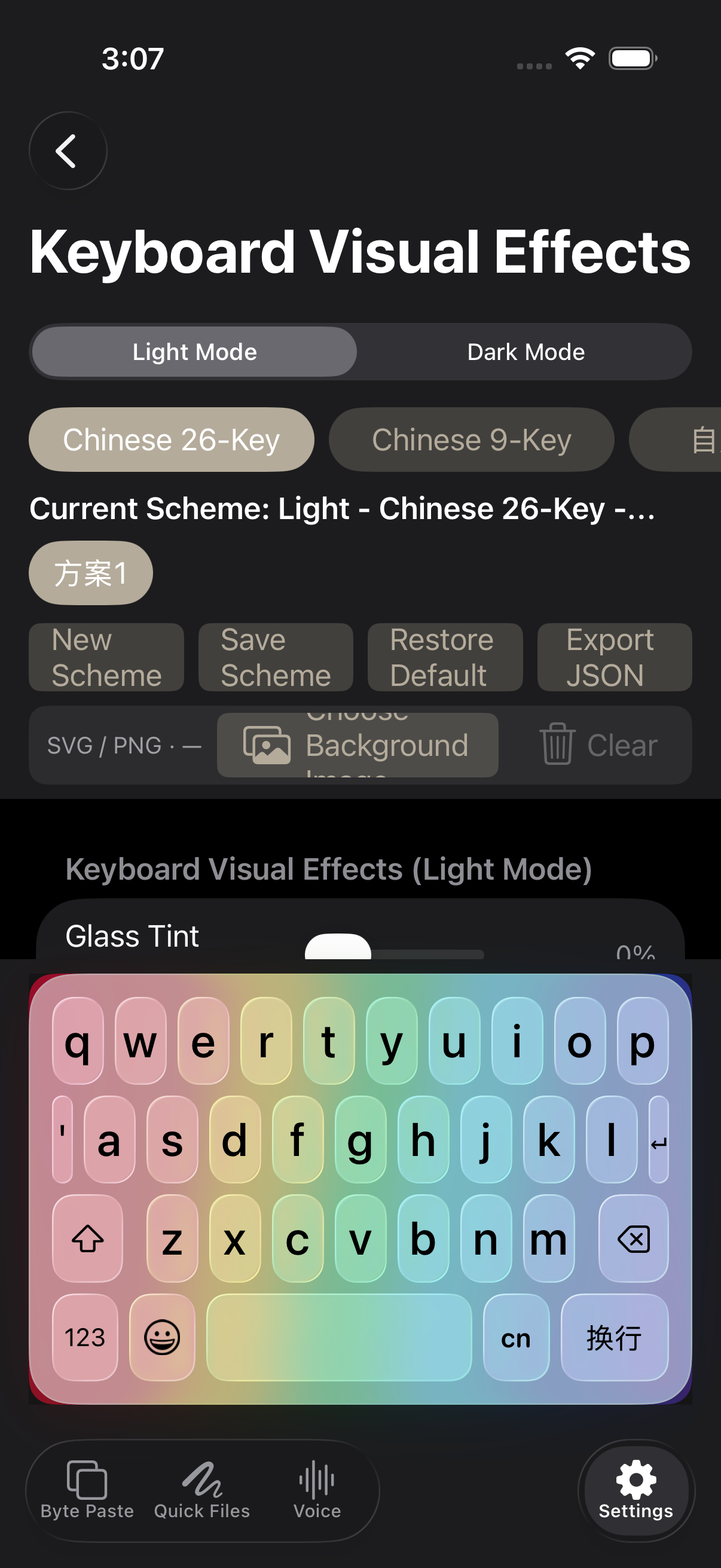
QWERTY keys, Pinyin composition, candidates, and tools share one real keyboard.
- Tap the language key to switch Chinese and English; tap the smiley for Emoji.
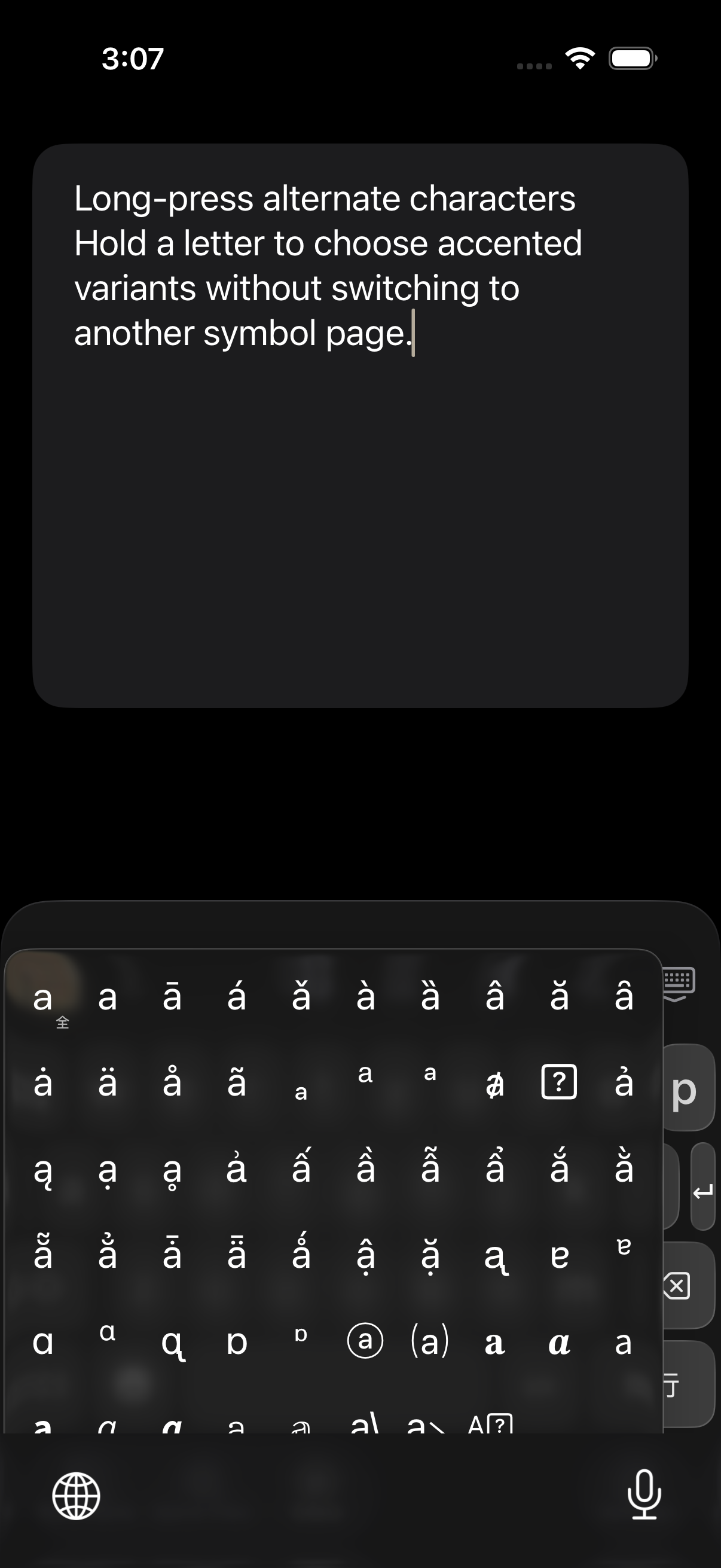
- Hold a letter for accented variants—useful for names and mixed-language input.
- Save separate light, dark, and per-layout visual schemes in the main app.
Chinese 9-key keyboard
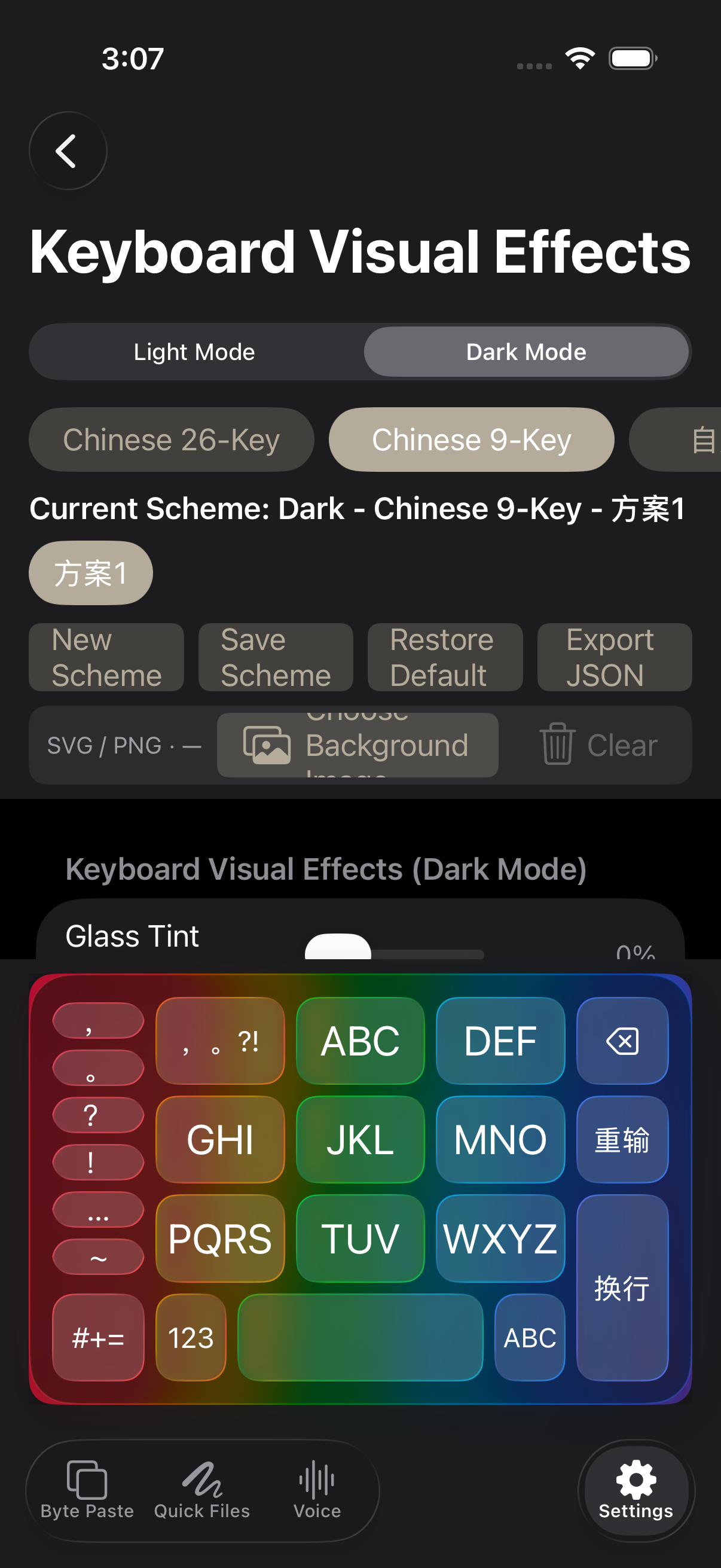
Larger T9-style keys make one-handed Pinyin input easier.
- ABC through WXYZ compose Pinyin; Reset clears the current uncommitted composition.
- Punctuation, symbols, Space, and Return have dedicated regions.
- The script/language area supports the same hold and four-direction gestures as the 26-key layout.
Toolbar: every tool explained
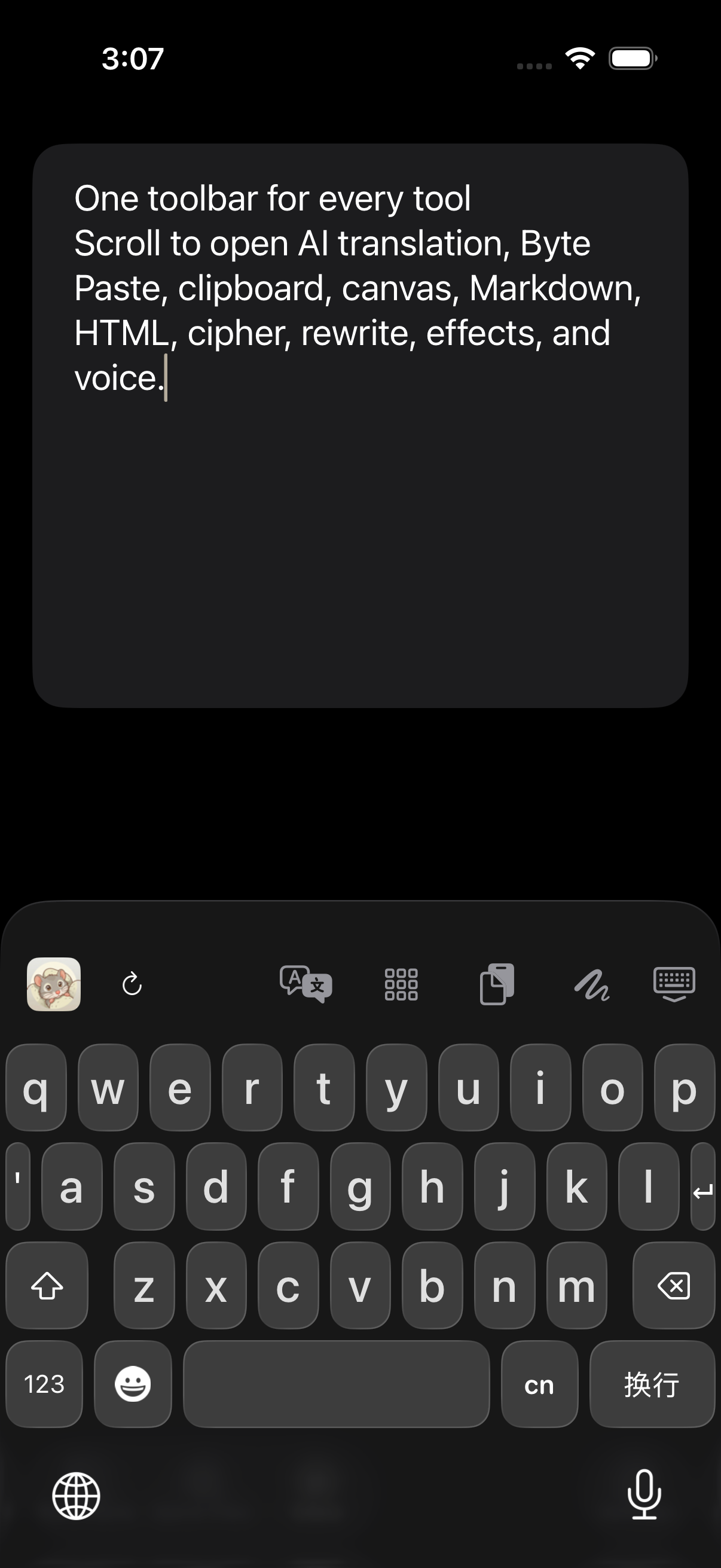
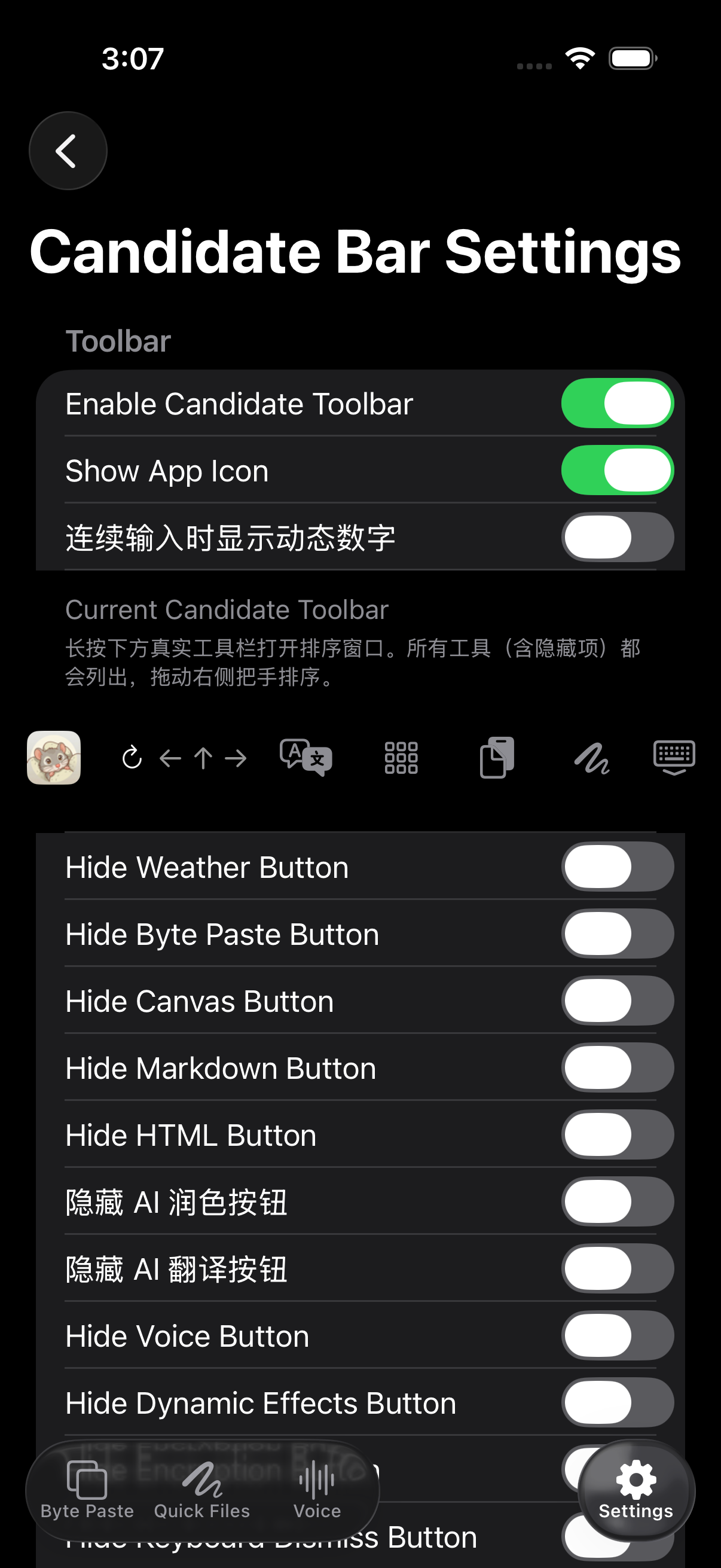
Scroll the toolbar horizontally, hide items, and reorder them by holding the real preview.
- Candidate / Reset: manage composition and return to the normal keyboard state.
- Cursor arrows: move the insertion point precisely.
- AI Translation: translate text from the current field and replace it in place.
- Byte Paste: use pinned text, rich text, images, files, and links.
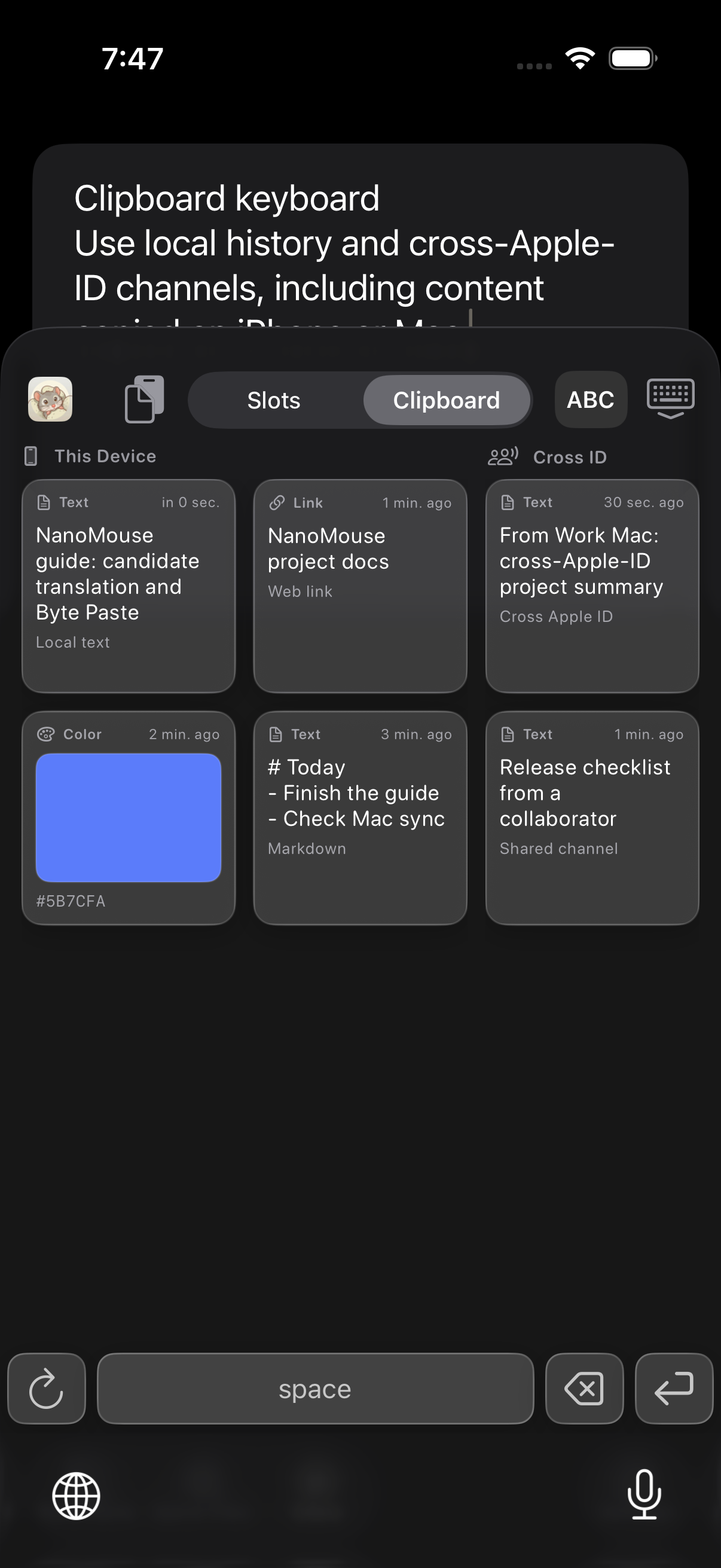
- Clipboard: use local history, same-Apple-ID history, and cross-Apple-ID channels.
- Canvas: open the main app to draw, save, or share.
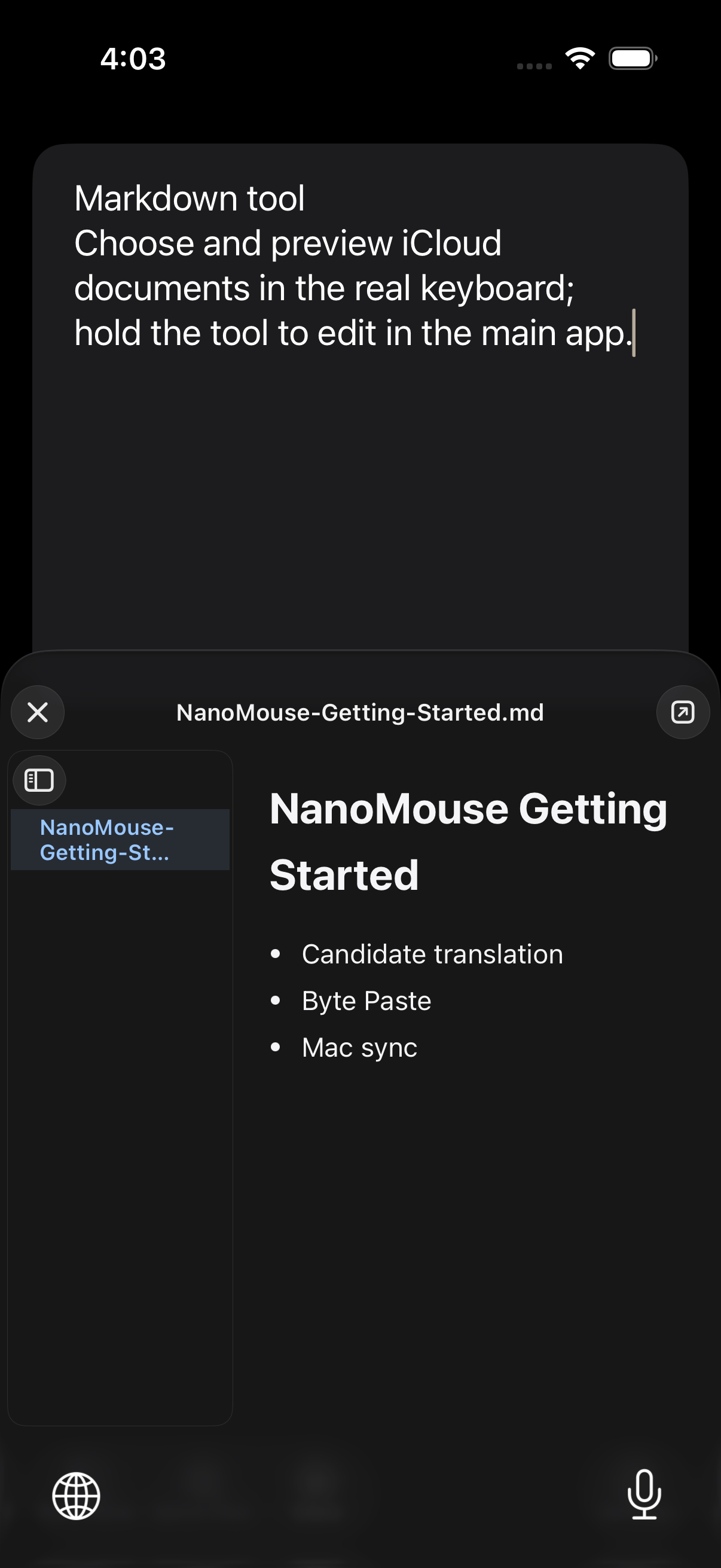
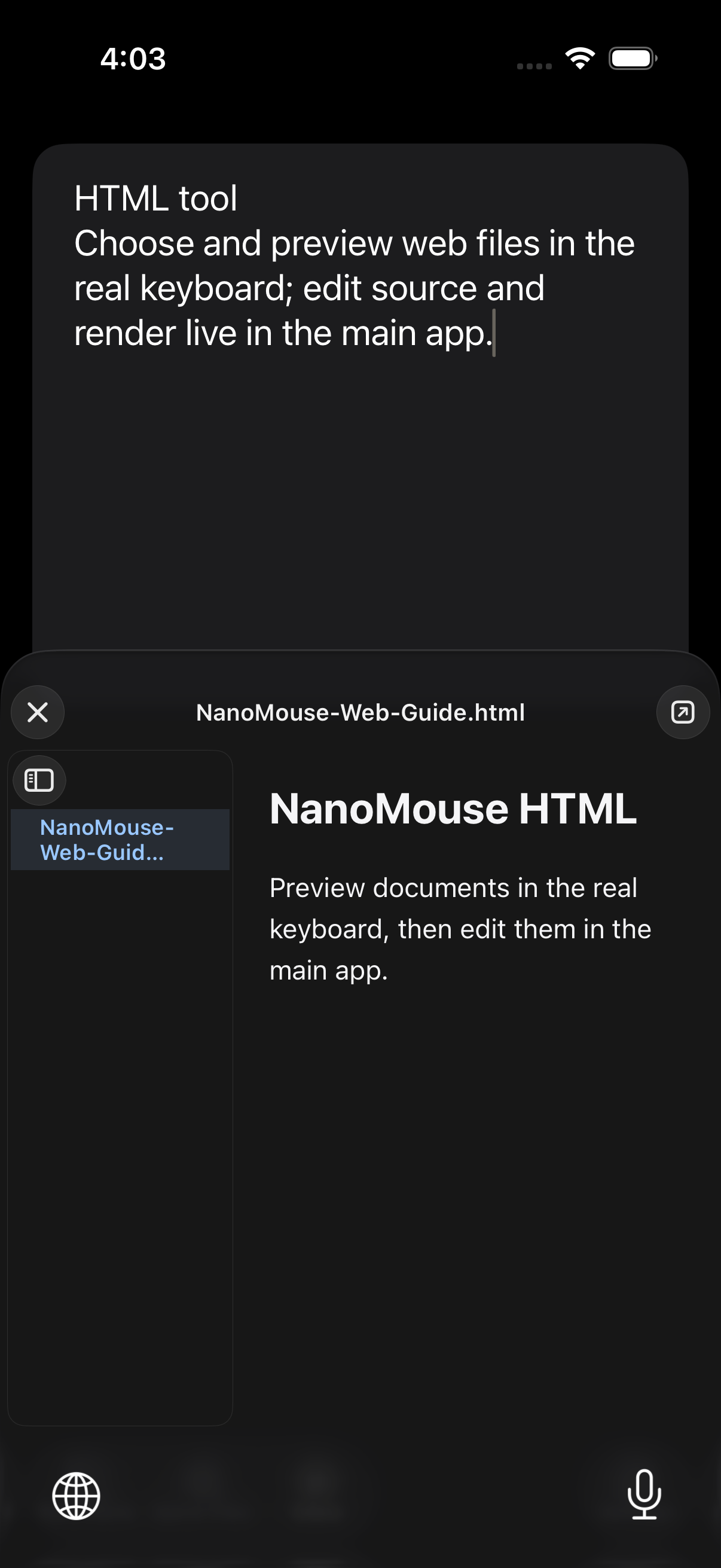
- Markdown / HTML: select and preview documents in the keyboard; edit fully in the app.
- Cipher: encrypt or decrypt with matching algorithms and passphrases.
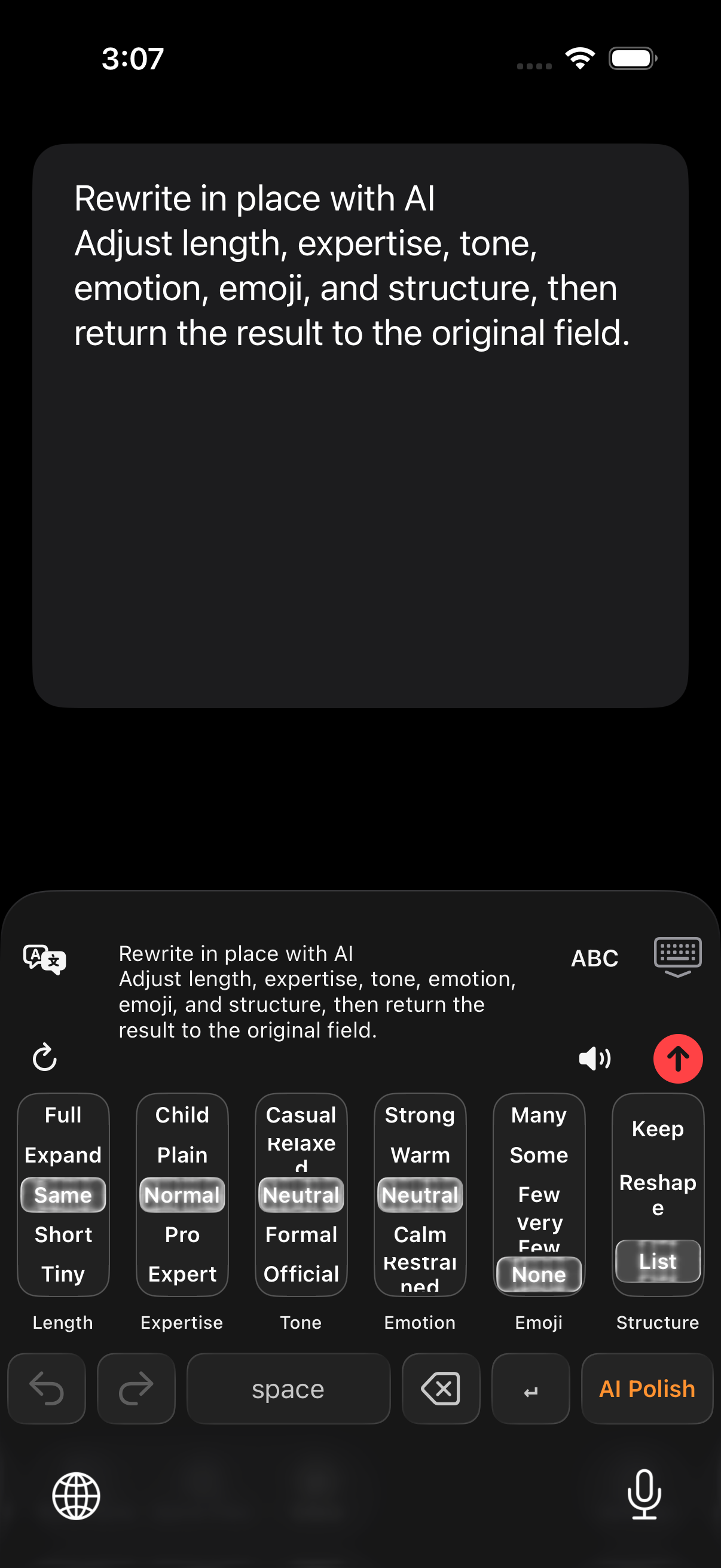
- AI Rewrite: adjust length, expertise, tone, emotion, Emoji, and structure.
- Effects / Voice / Dismiss: change effects, begin dictation, or close the keyboard.
Candidate translation
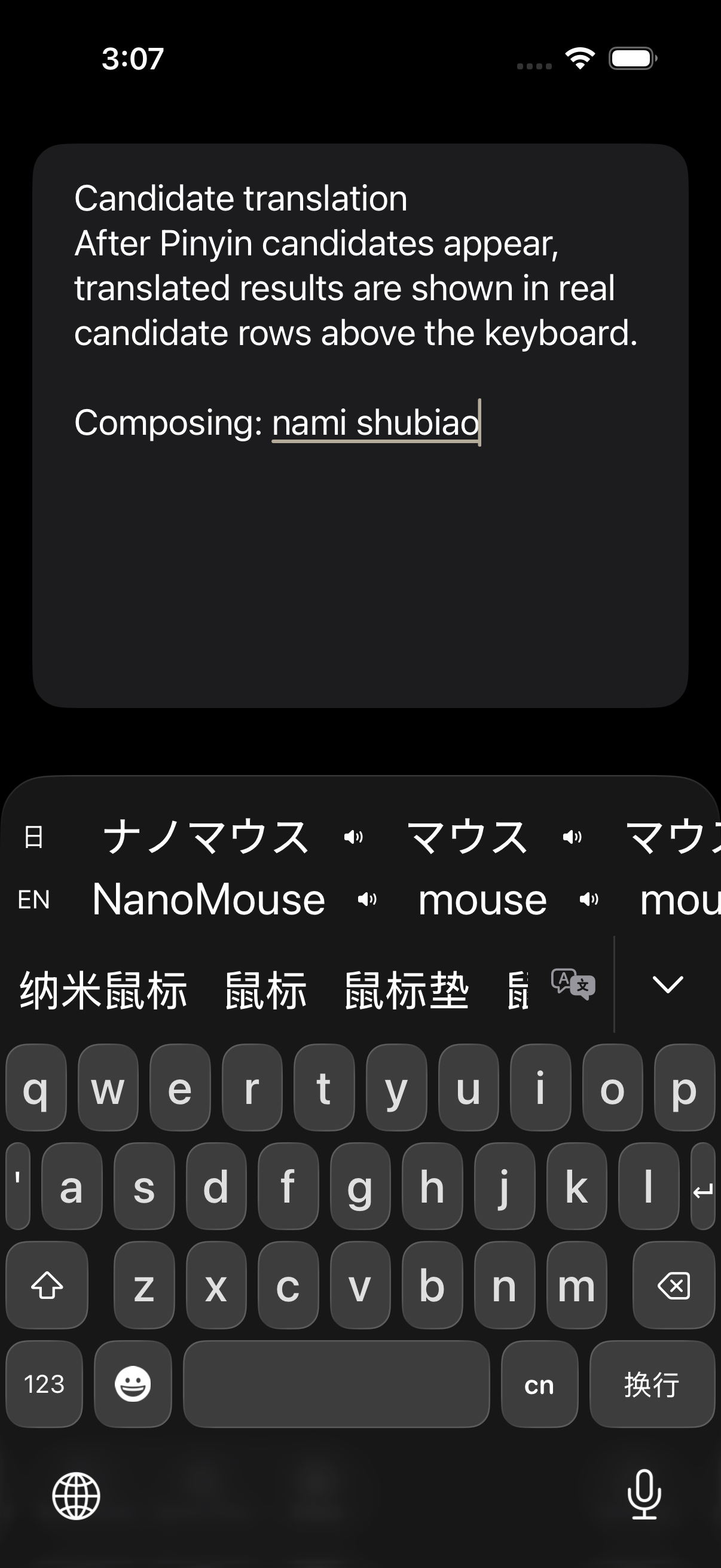
Translations appear as real candidate rows while you are still composing Pinyin.
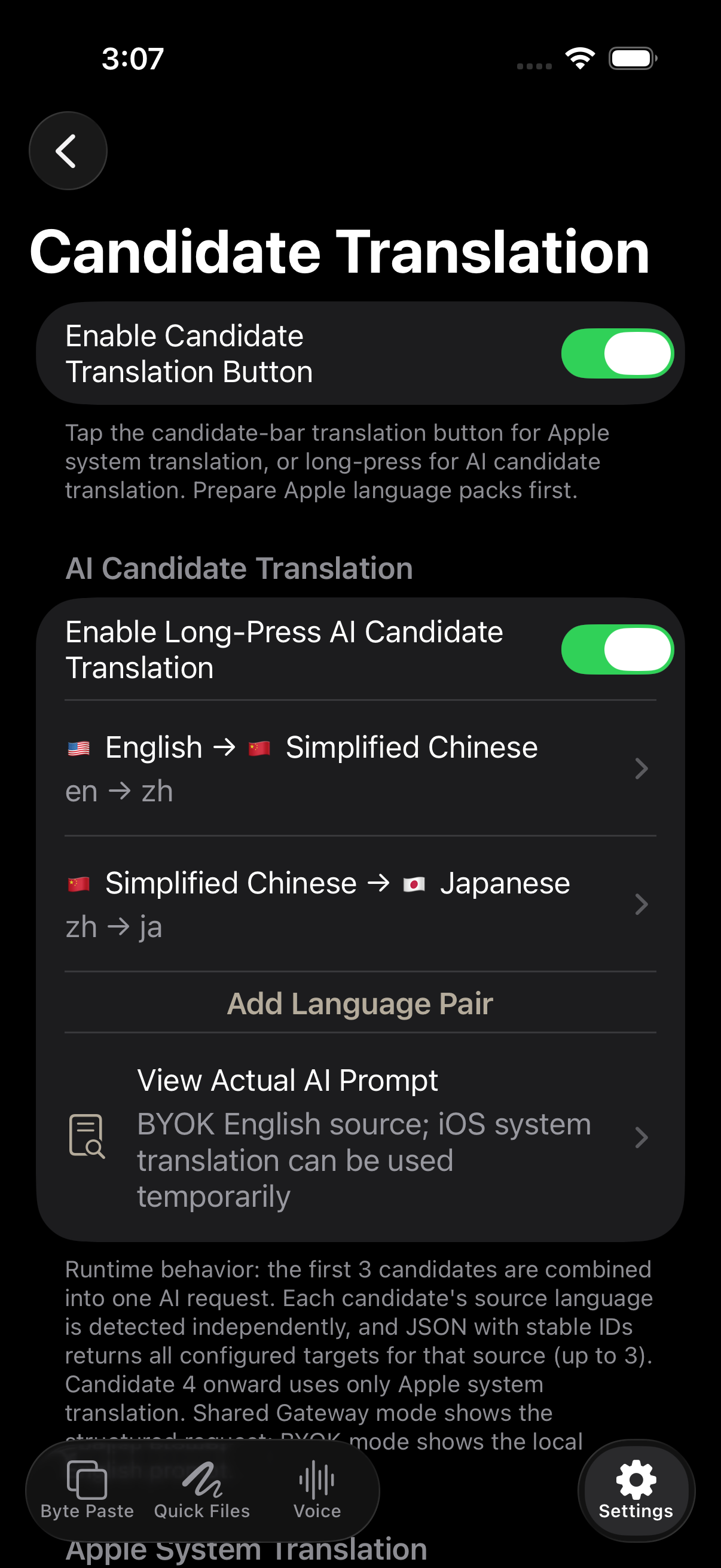
- Enable the candidate-translation button and prepare the required Apple system language packs.
- For AI candidate translation, add source-to-target pairs; each pair shows flags, language names, and direction.
- Type Pinyin. When candidates appear, translated rows are available for direct insertion.
AI Translation and AI Rewrite
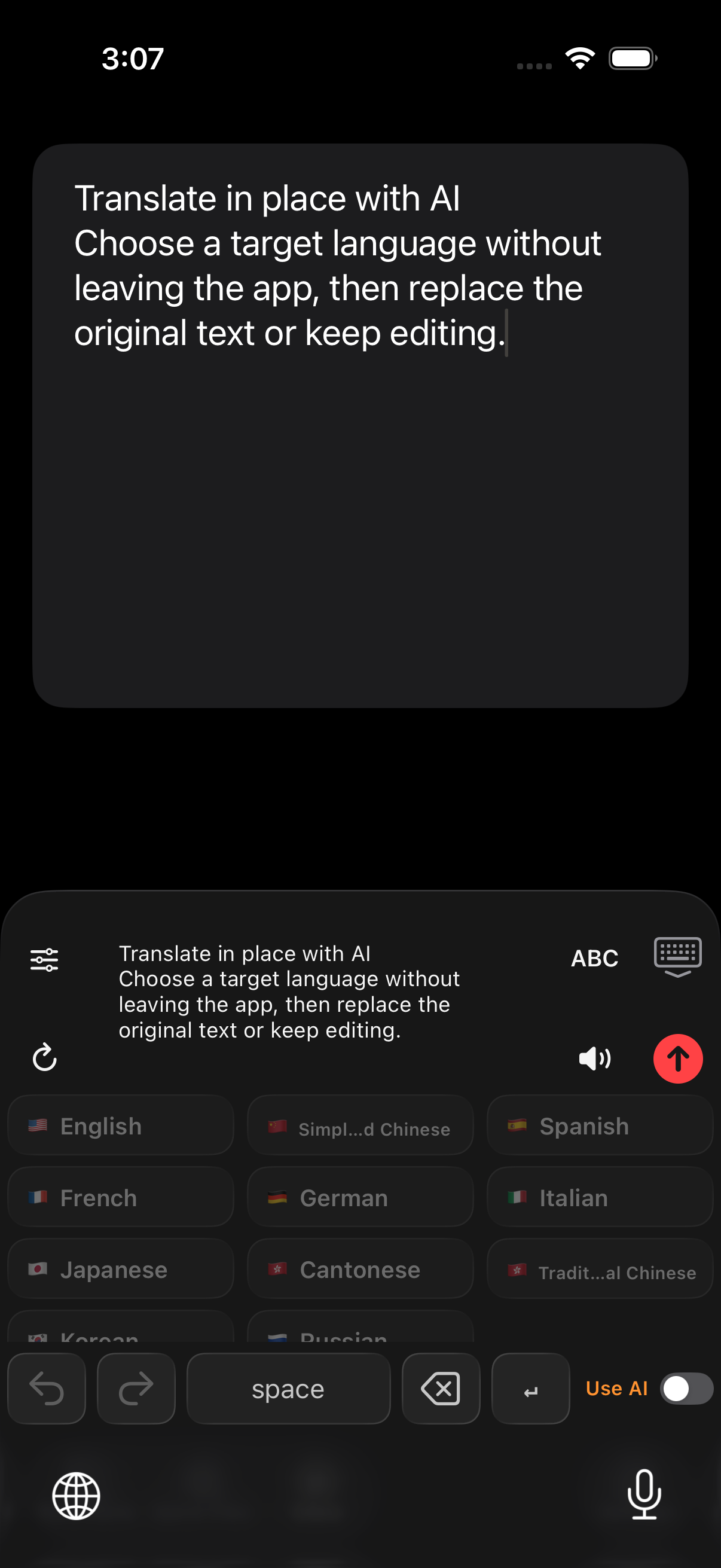
Candidate translation handles words being composed; these tools handle a sentence, paragraph, or the current field.
| Tool | Best for | Result |
|---|---|---|
| AI Translation | Sentences and paragraphs | Choose a target language, preview, then replace or edit |
| AI Rewrite | Existing text | Adjust six dimensions and return the result in place |
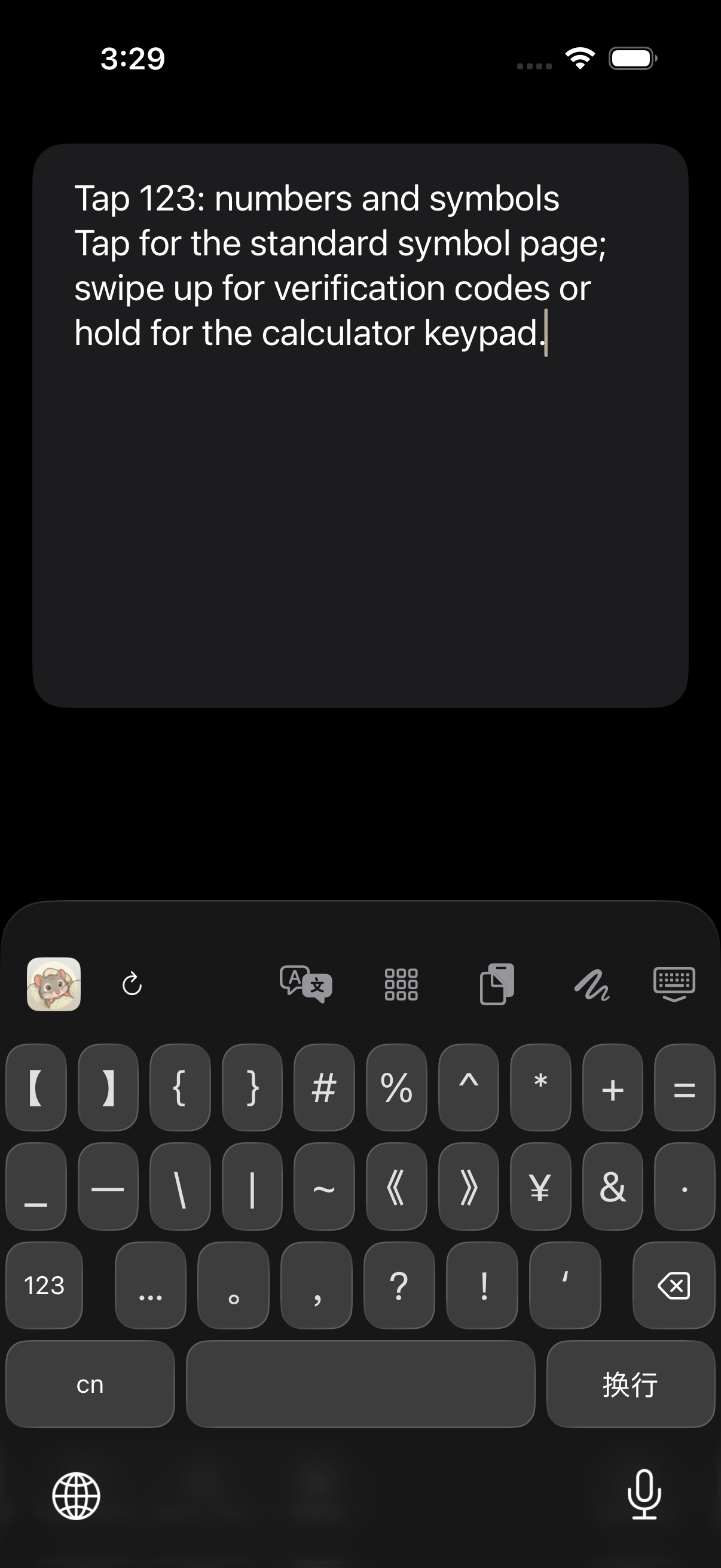
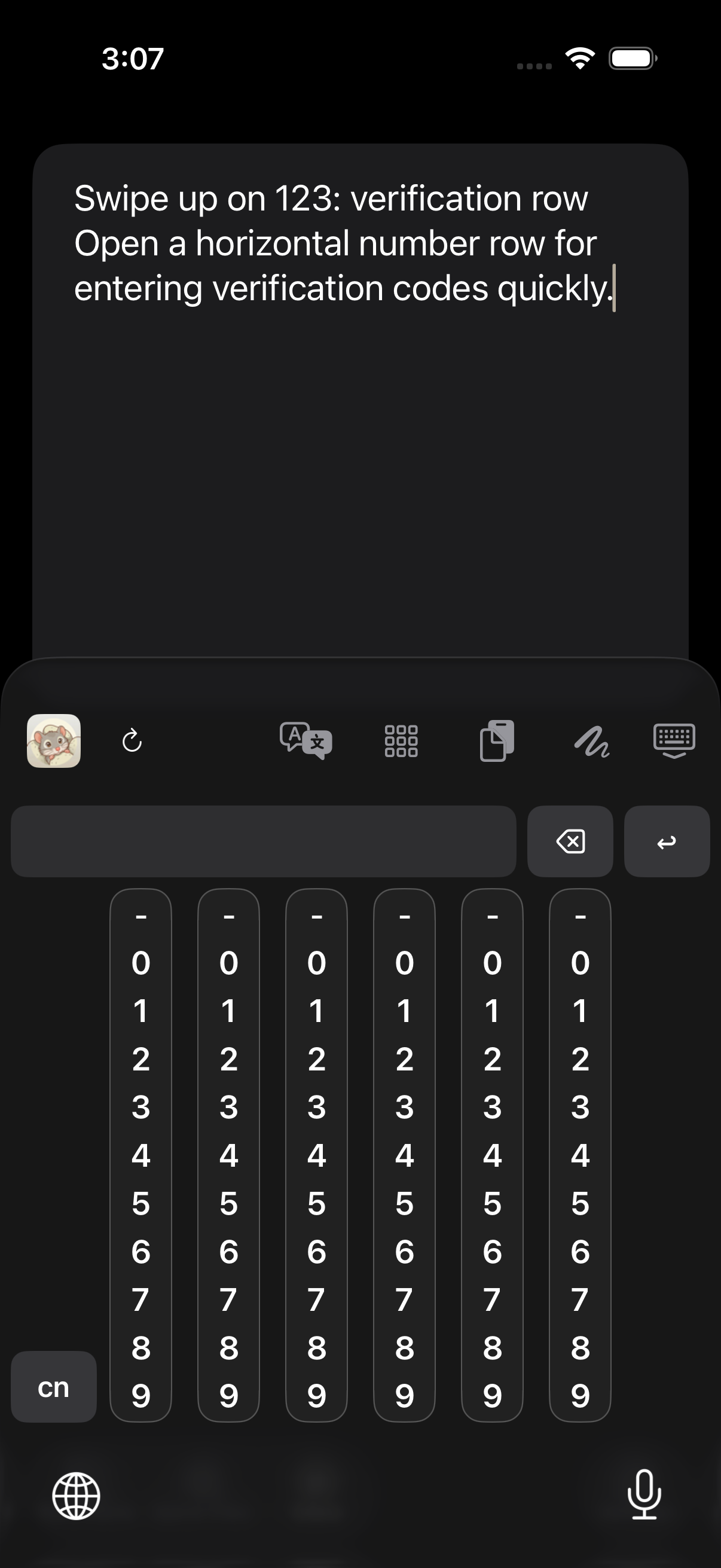
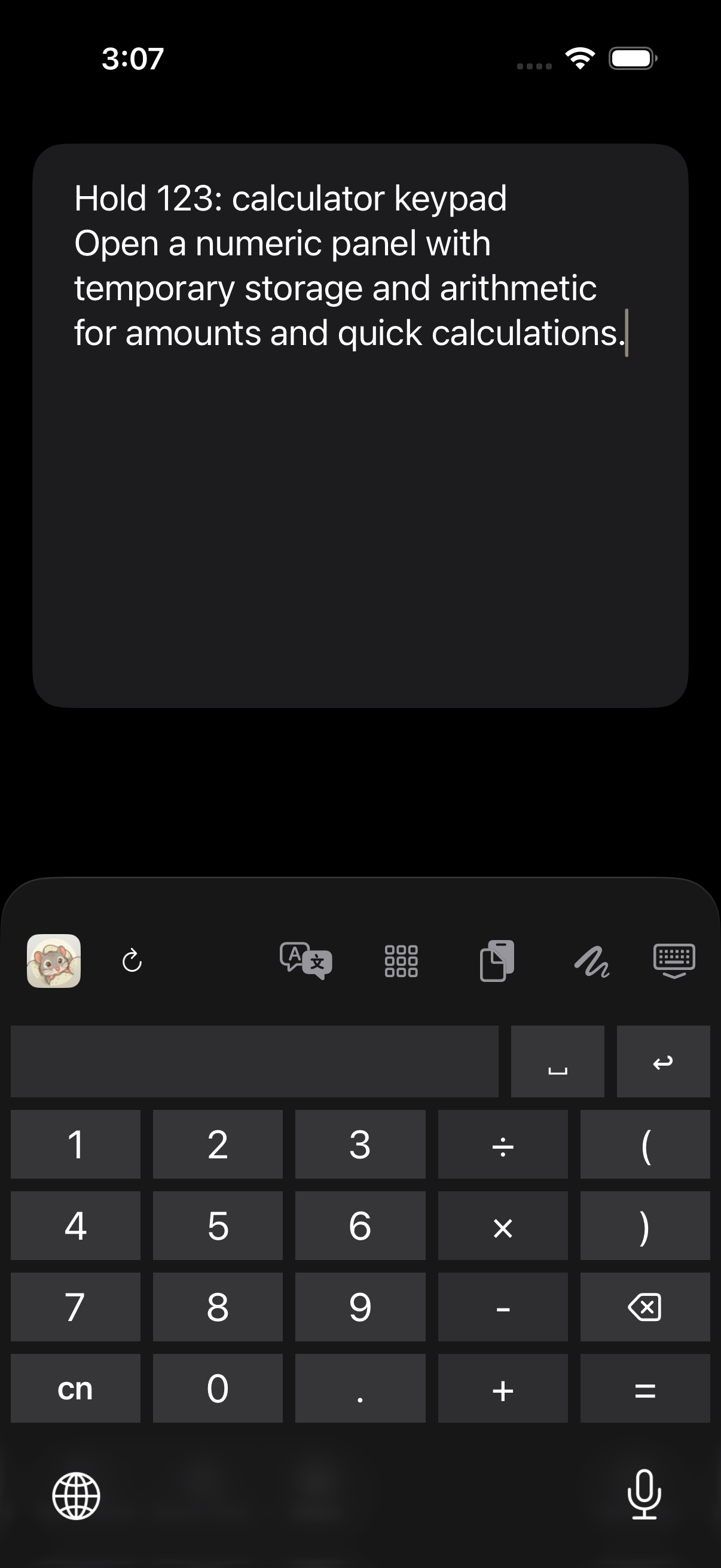
123: tap, swipe up, or hold
One key opens three distinct real interfaces.
Delete gestures
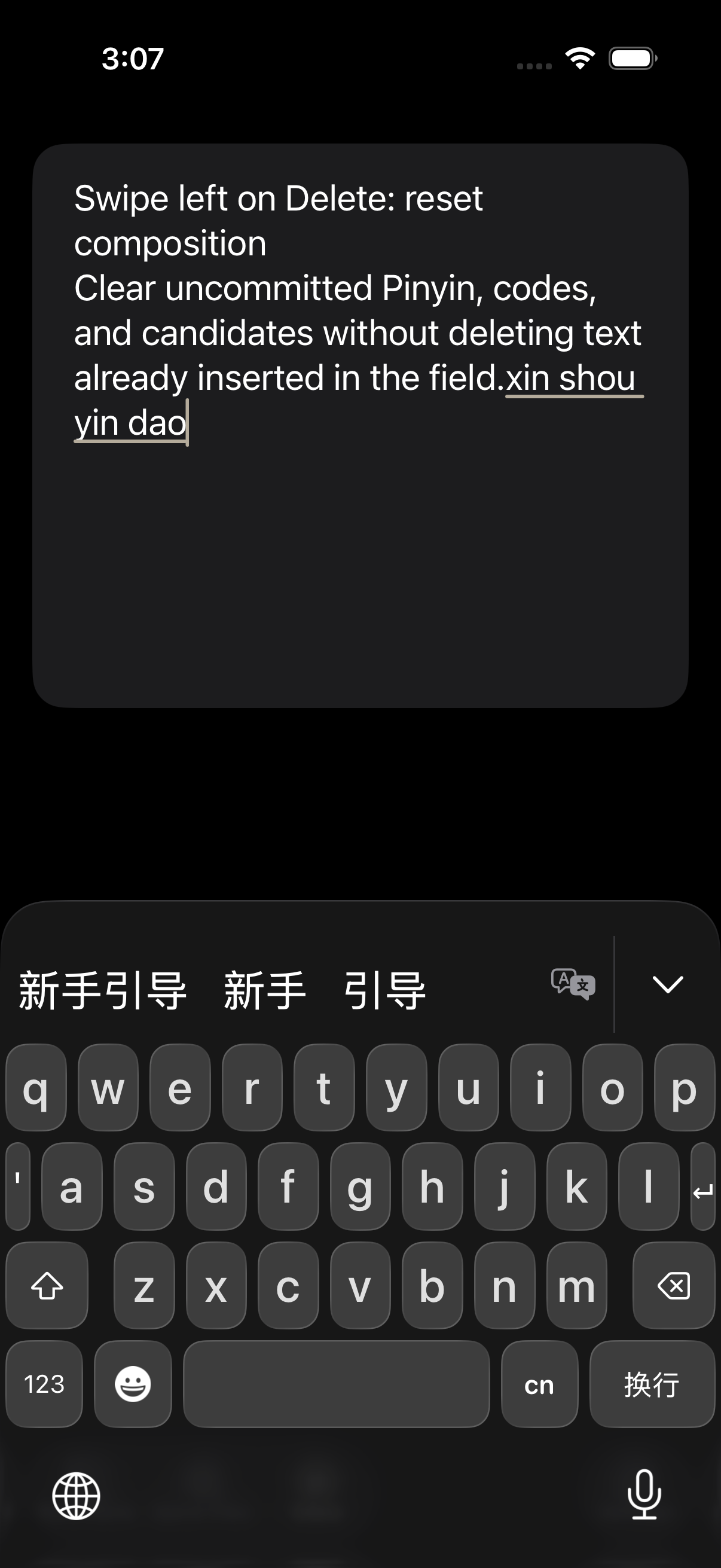
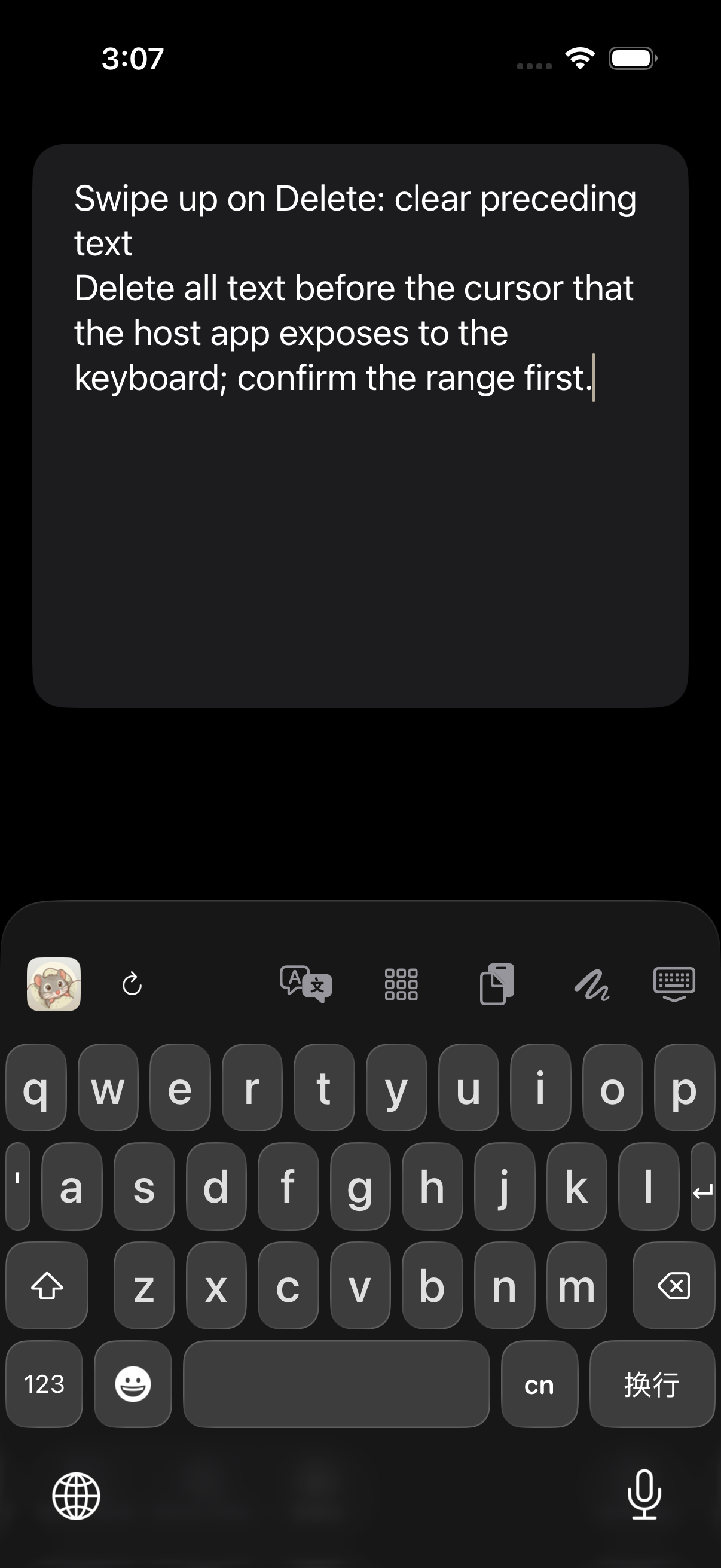
Swipe left resets uncommitted composition; swipe up clears readable text before the cursor.
| Gesture | Scope | Use |
|---|---|---|
| Swipe left on Delete | Pinyin, codes, and candidates not yet inserted | Restart a mistaken composition |
| Swipe up on Delete | All preceding text exposed by the host app | Quickly clear the readable range |
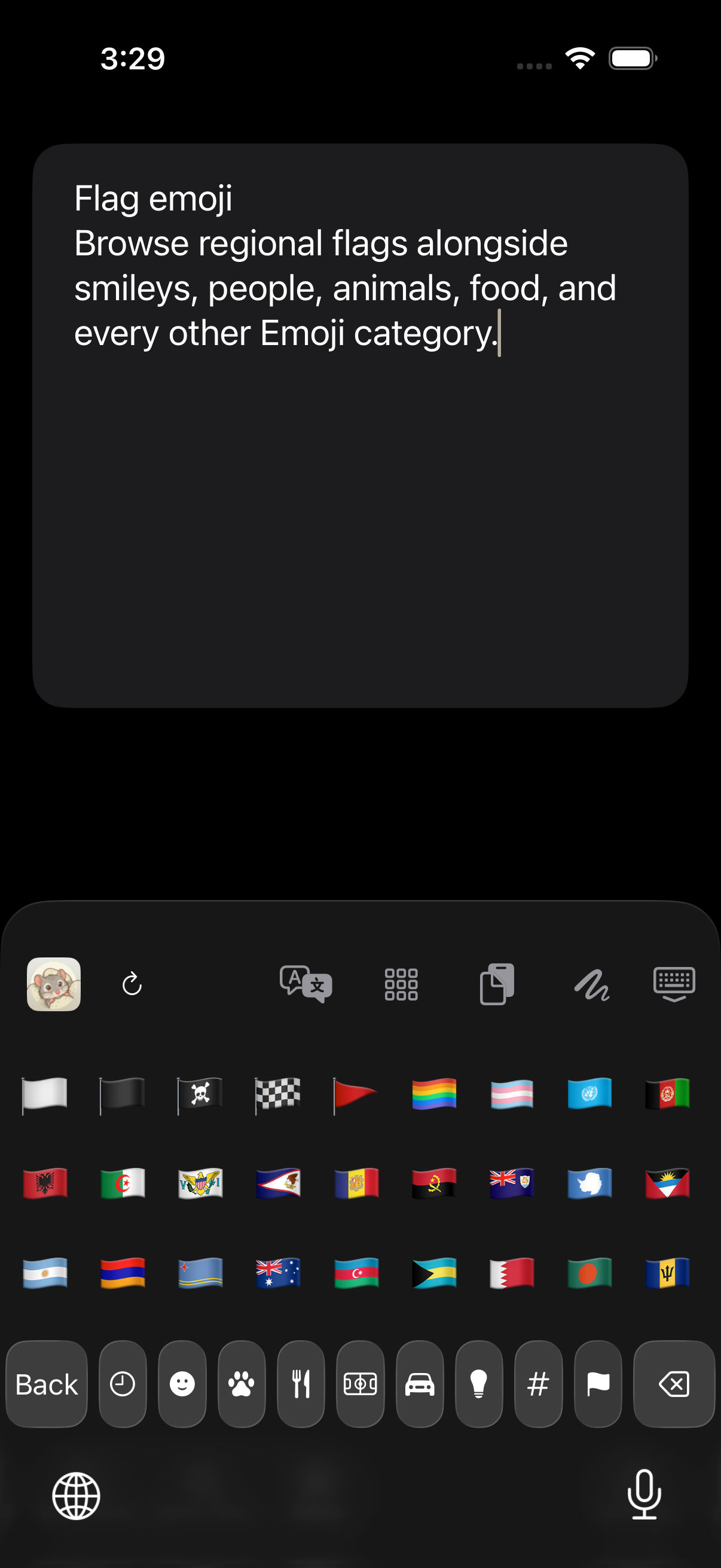
Emoji: people, symbols, and flags
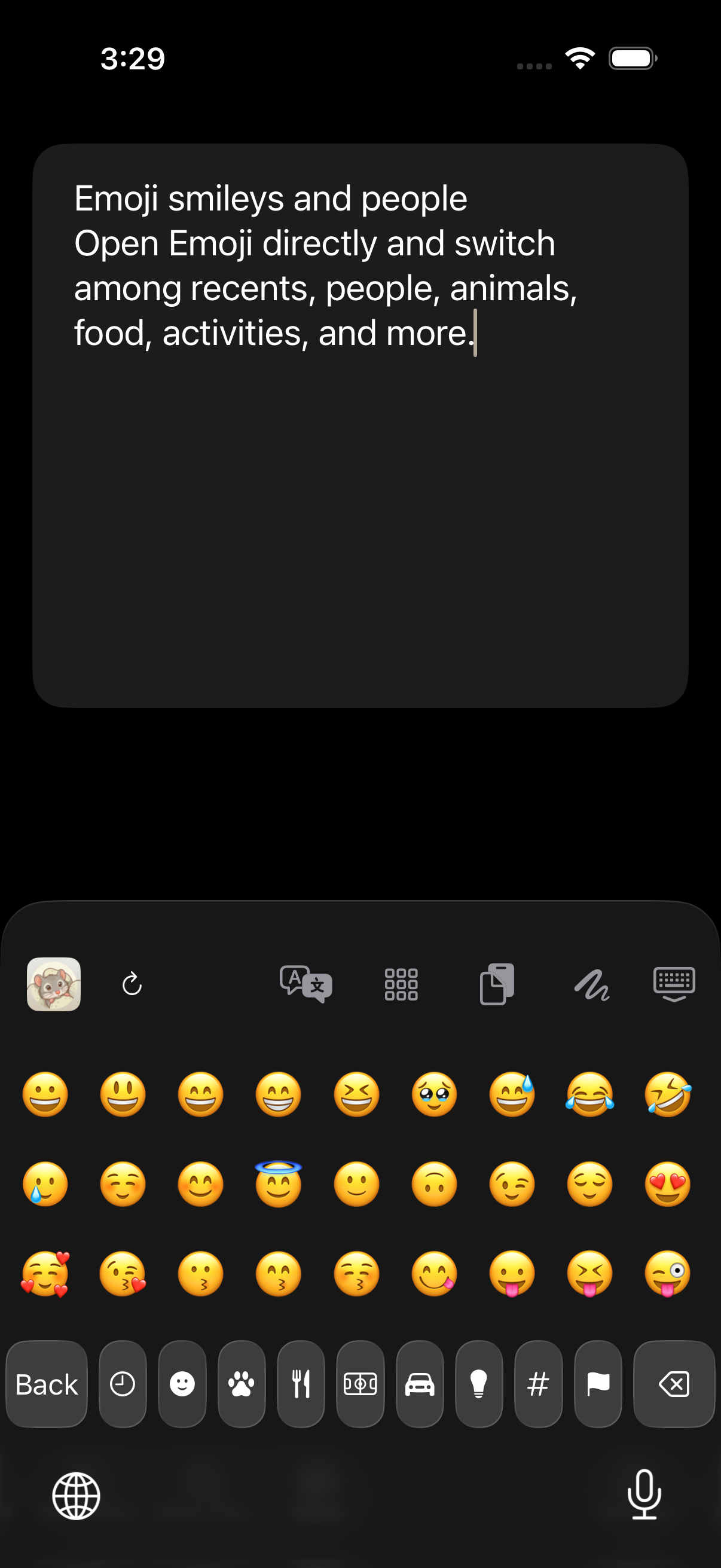
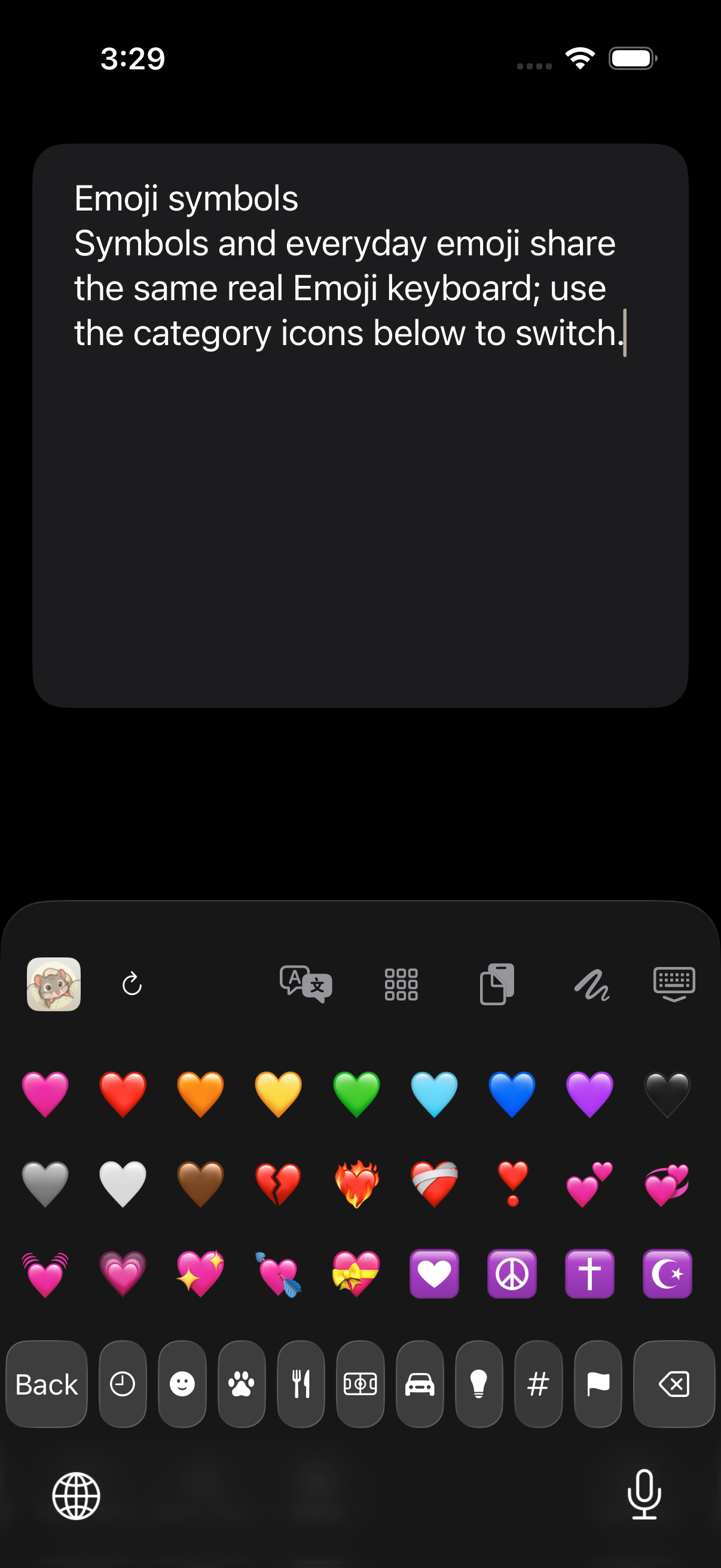
Open the real Emoji keyboard and use the category strip to browse every group.
- Recents, smileys and people, animals, food, activities, travel, objects, symbols, and flags are separate categories.
- Use the bottom icons to switch categories; use Back to return to the previous NanoMouse layout.
- The screenshots use real rendered system Emoji assets, including regional flags.
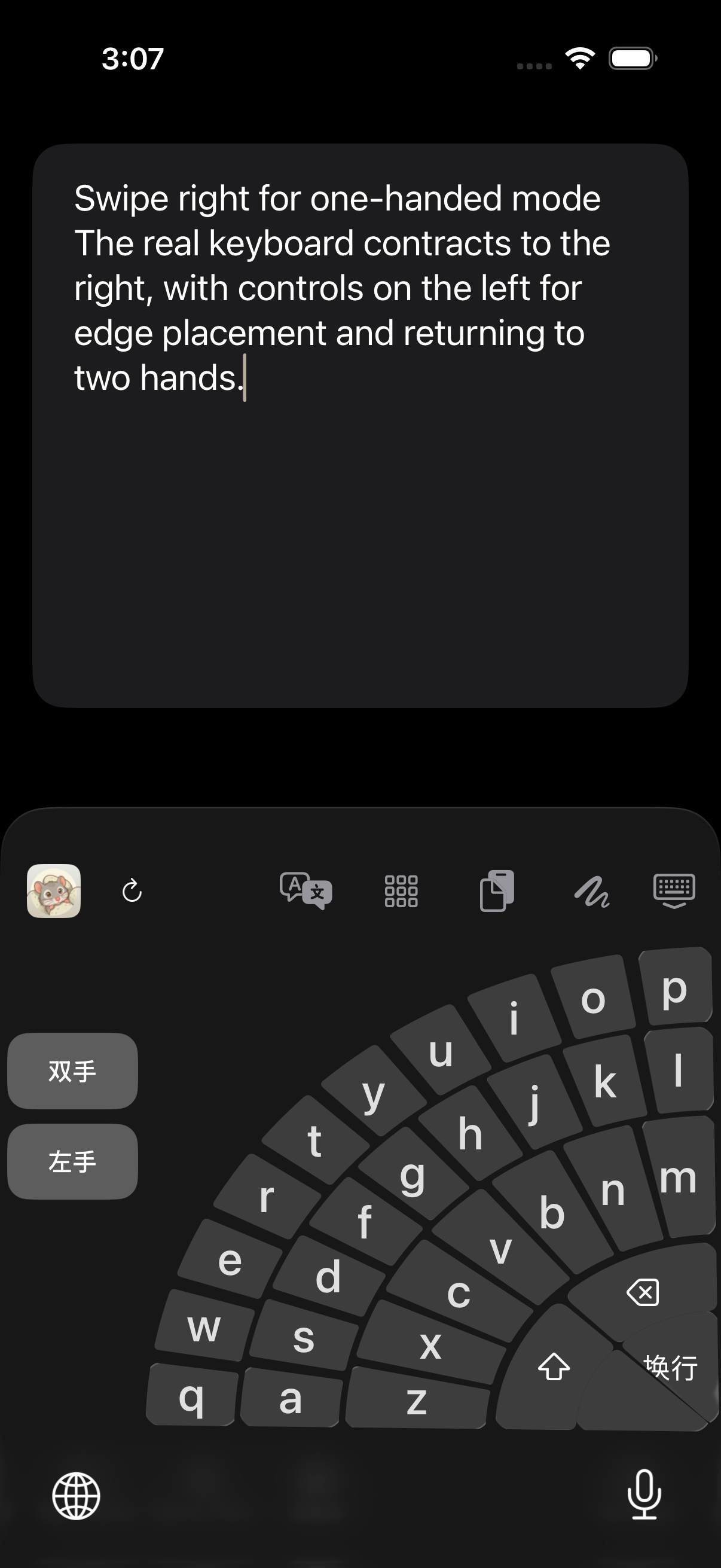
Four gestures on the script/language area
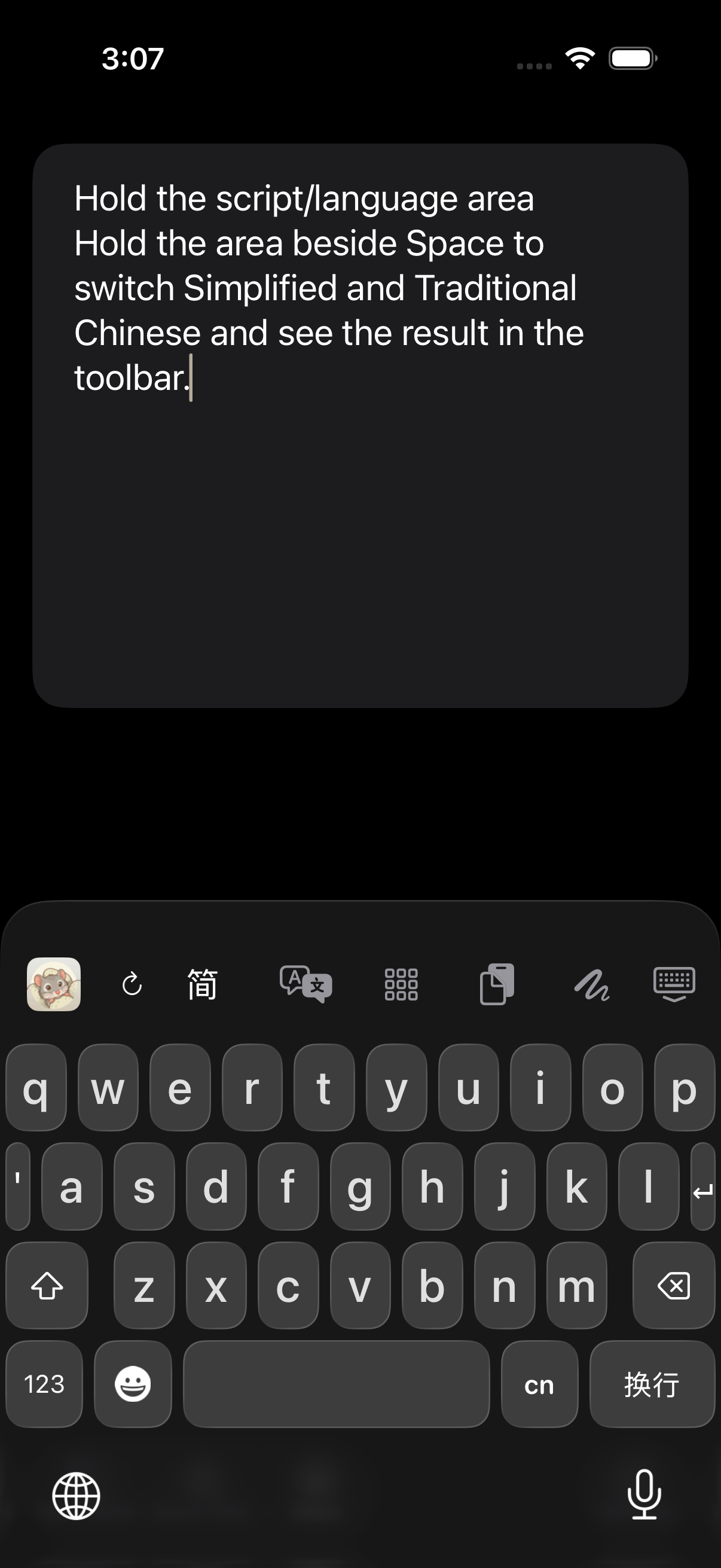
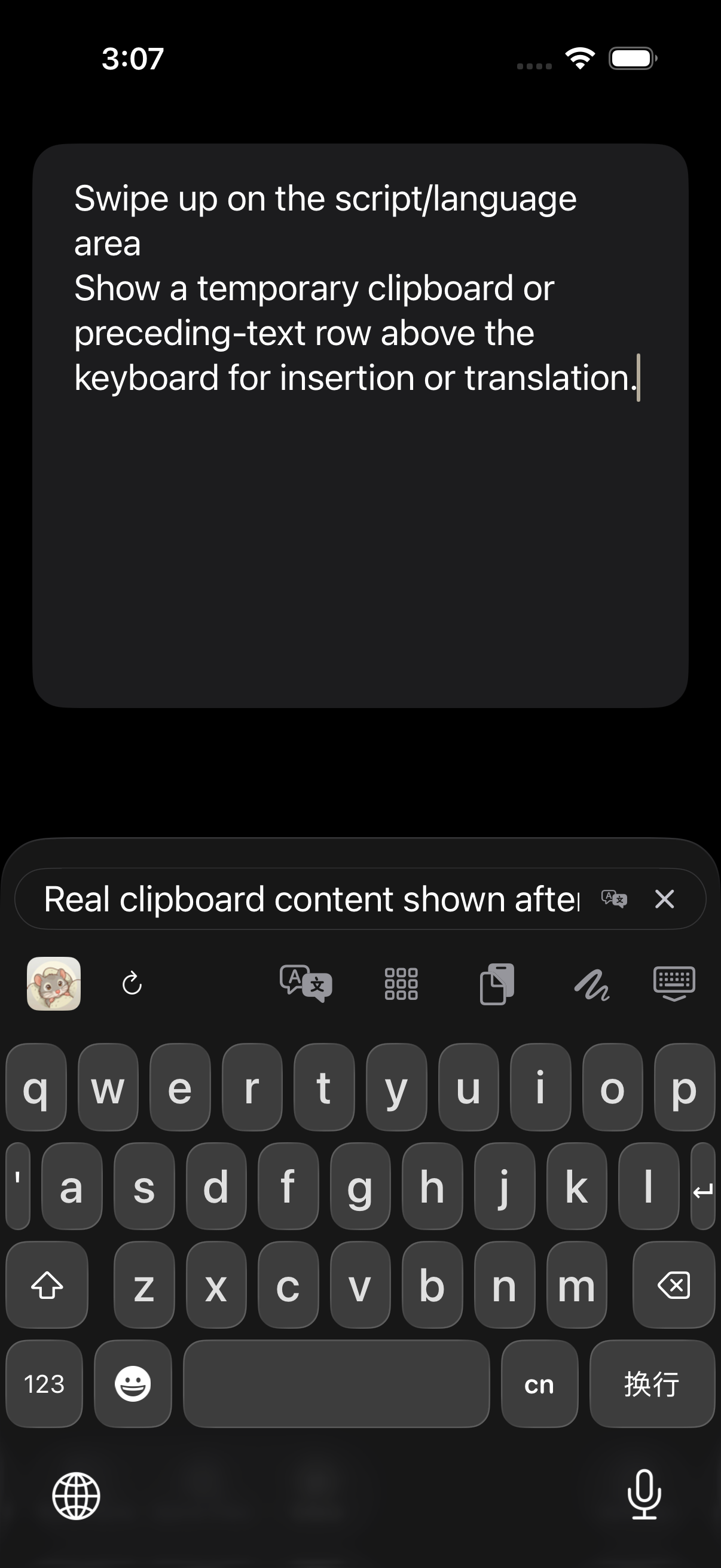
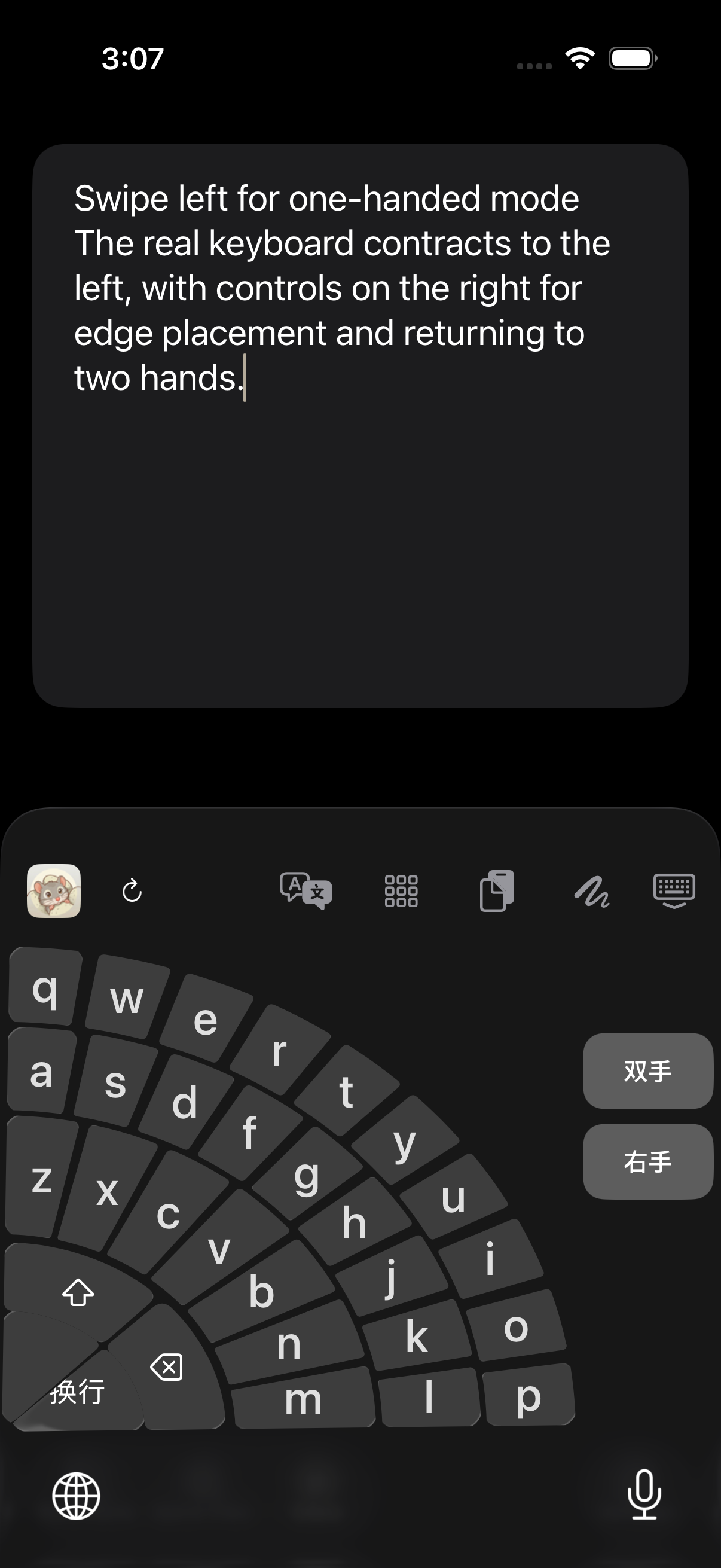
The area beside Space switches more than Chinese and English.
- Hold: manually switch Simplified and Traditional Chinese.
- Swipe up: show temporary clipboard or preceding-text content.
- Swipe left: contract the keyboard for the left hand.
- Swipe right: contract the keyboard for the right hand.
Byte Paste: pinned slots and Mac sync
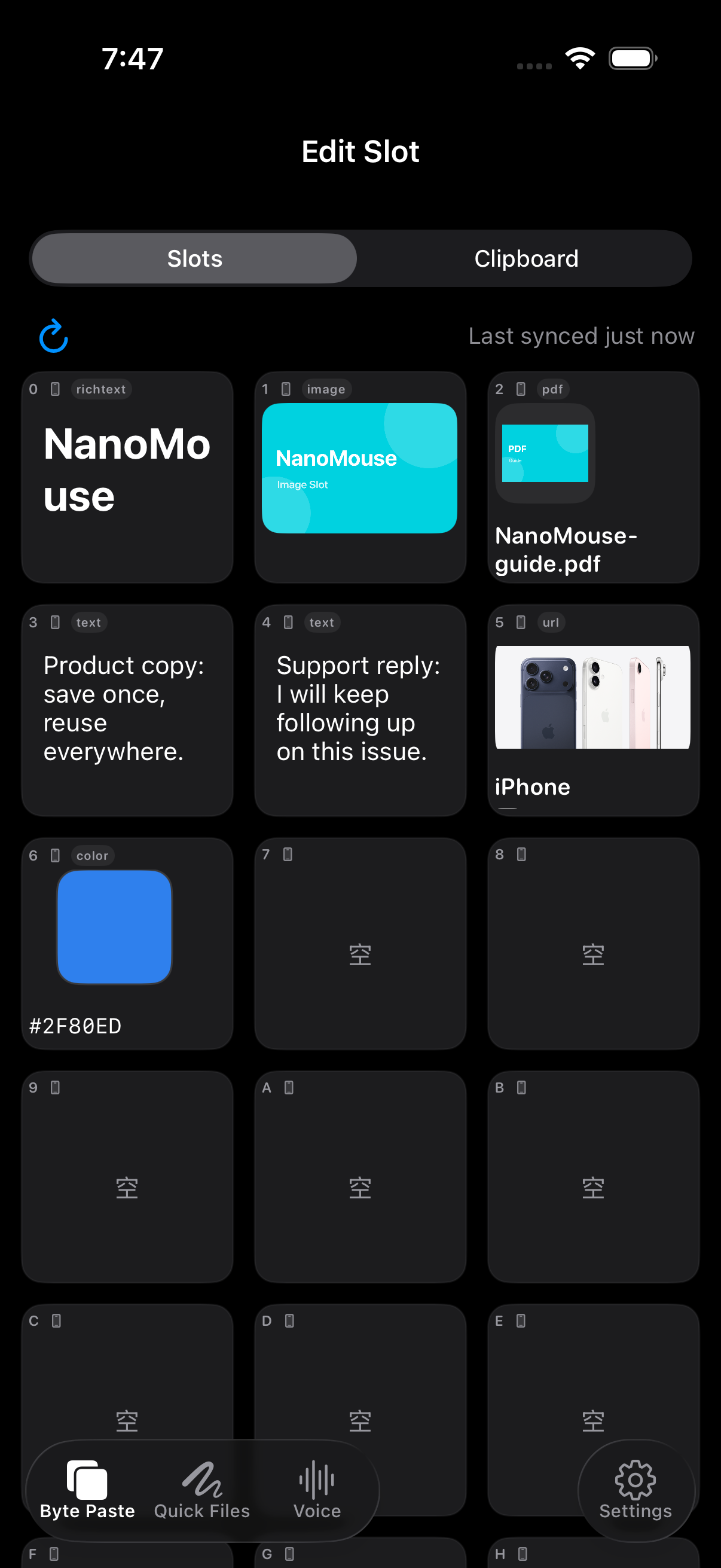
Organize reusable content in the main app and insert it directly from the real keyboard.
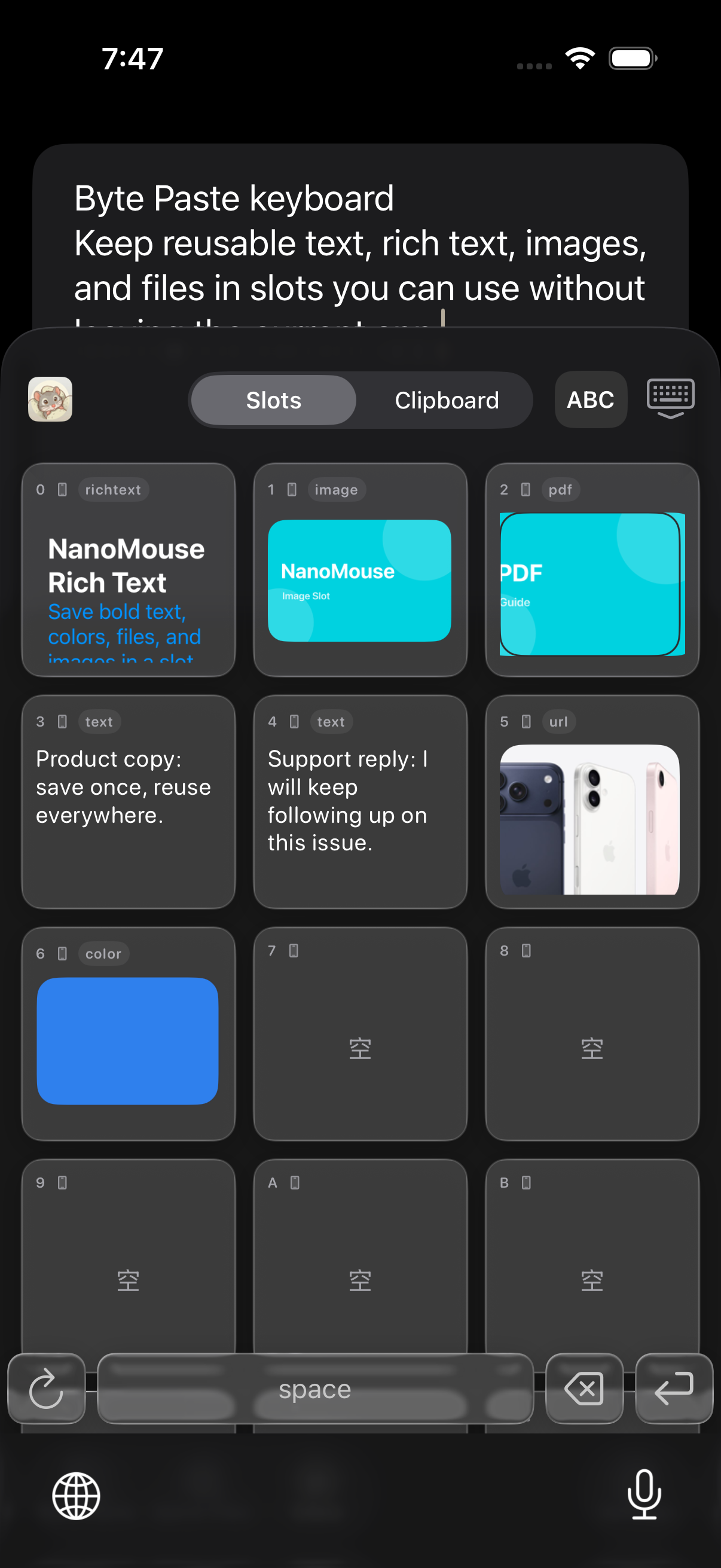
- Slots store plain text, rich text, images, files, and link previews; edit, reorder, and preview them in the main app.
- The keyboard reads the same slots without leaving the current chat, mail, or editor.
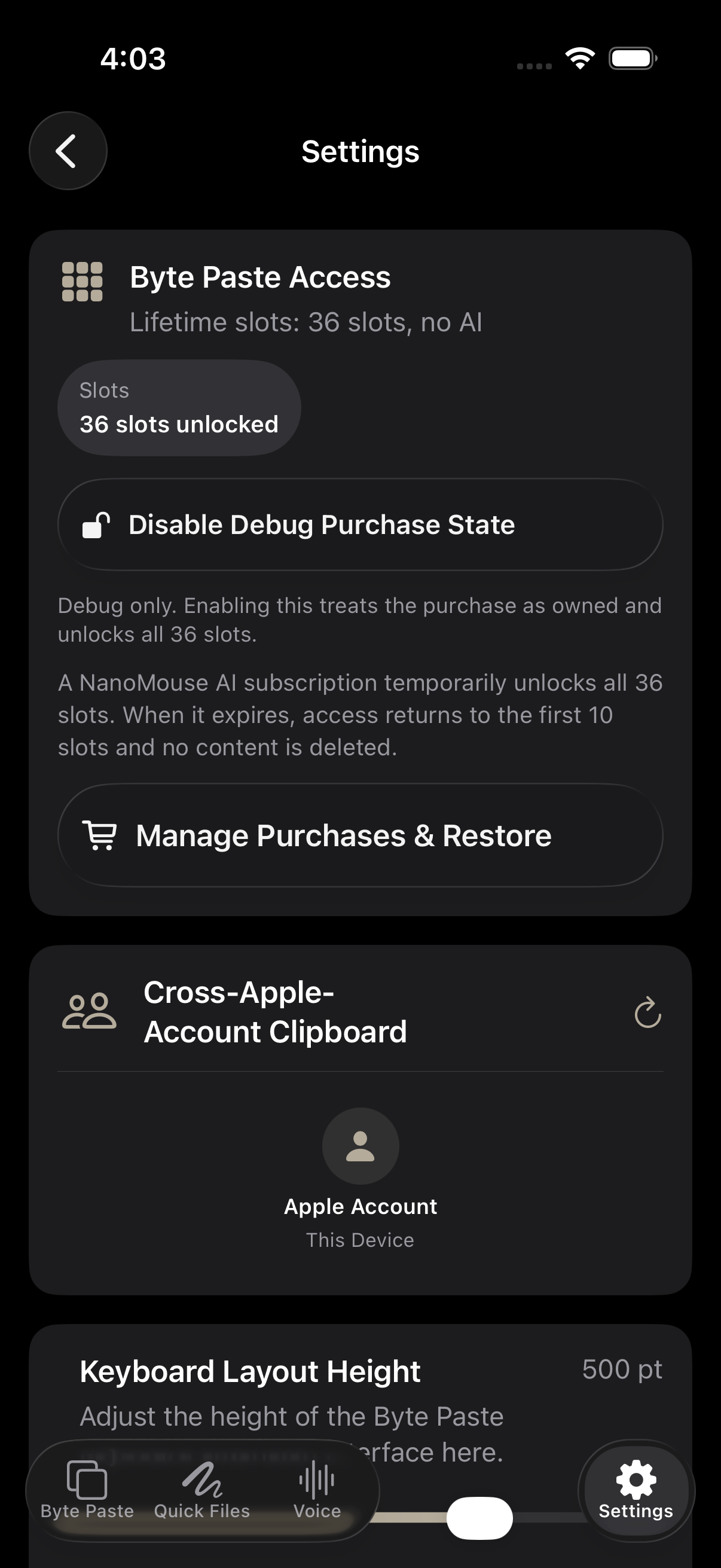
- With the same Apple ID and iCloud enabled, iPhone, iPad, and Mac merge pinned slots through CloudKit data synchronization.
- The Periodic Polling switch controls periodic data synchronization only.
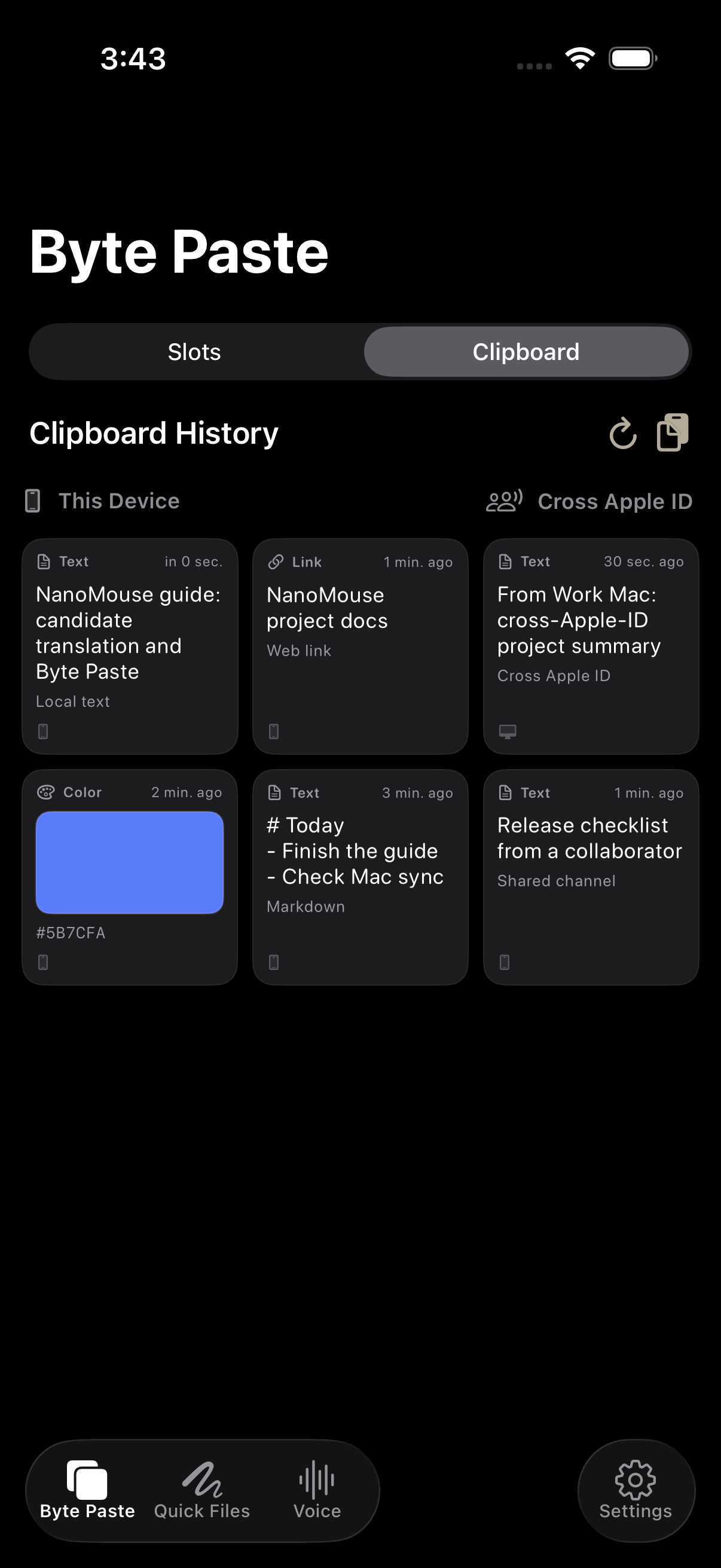
Clipboard: local, same Apple ID, and cross-Apple-ID
Clipboard history is separate from pinned Byte Paste slots.
| Source | Purpose | Boundary |
|---|---|---|
| Local history | Recover recently copied text | Current device and account settings |
| Same Apple ID | Continue history across iPhone, iPad, and Mac | Private CloudKit data synchronization |
| Cross-Apple-ID channel | Share a designated clipboard with another account | Invitation, acceptance, and per-channel disconnect |
Canvas: handwriting, drawing, and sharing
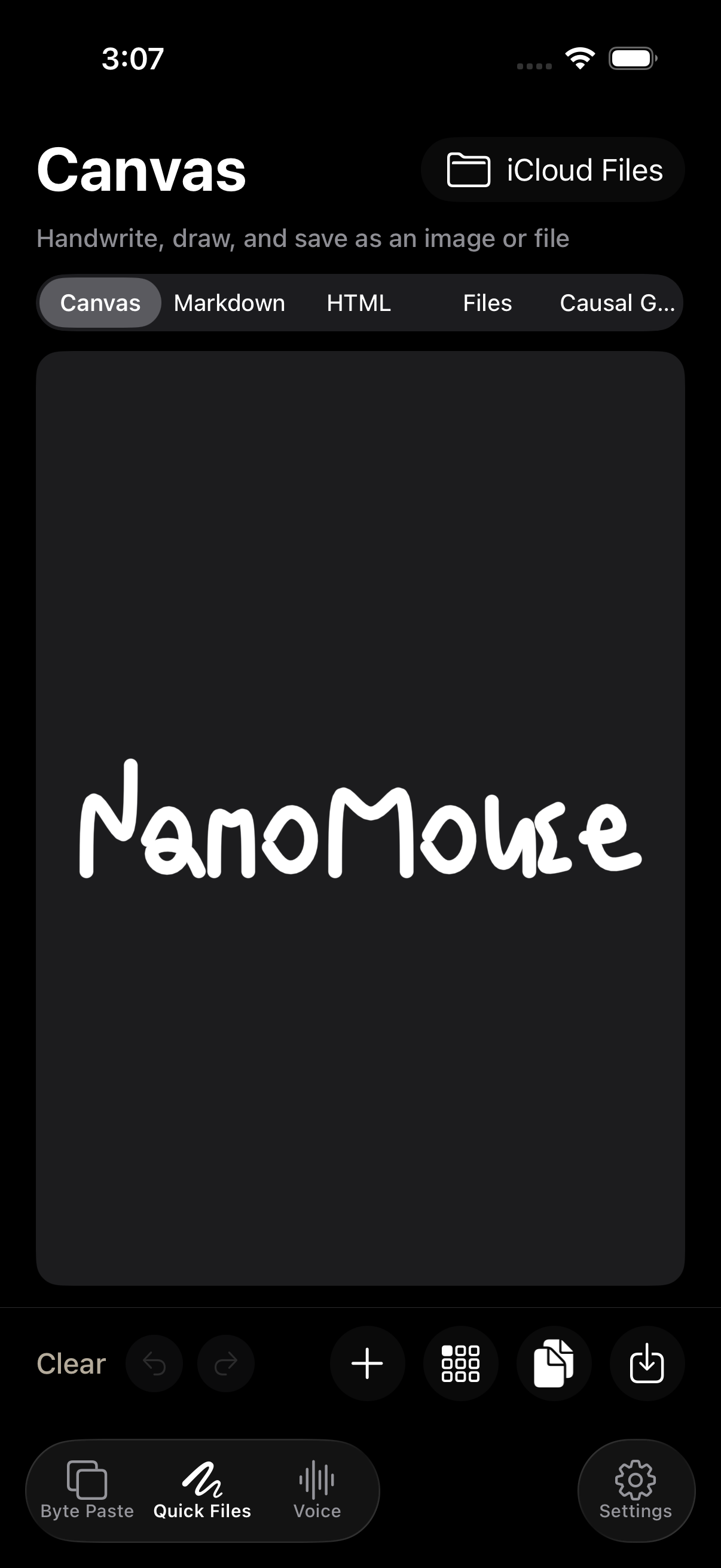
Start from the toolbar and draw in the real PencilKit canvas in the main app.
- Use pens, markers, erasers, colors, and widths for notes and sketches.
- Continue editing, export, or share back to a conversation or document.
- Complex drawing opens the main app because keyboard extensions have strict height, memory, and sandbox limits.
Markdown and HTML
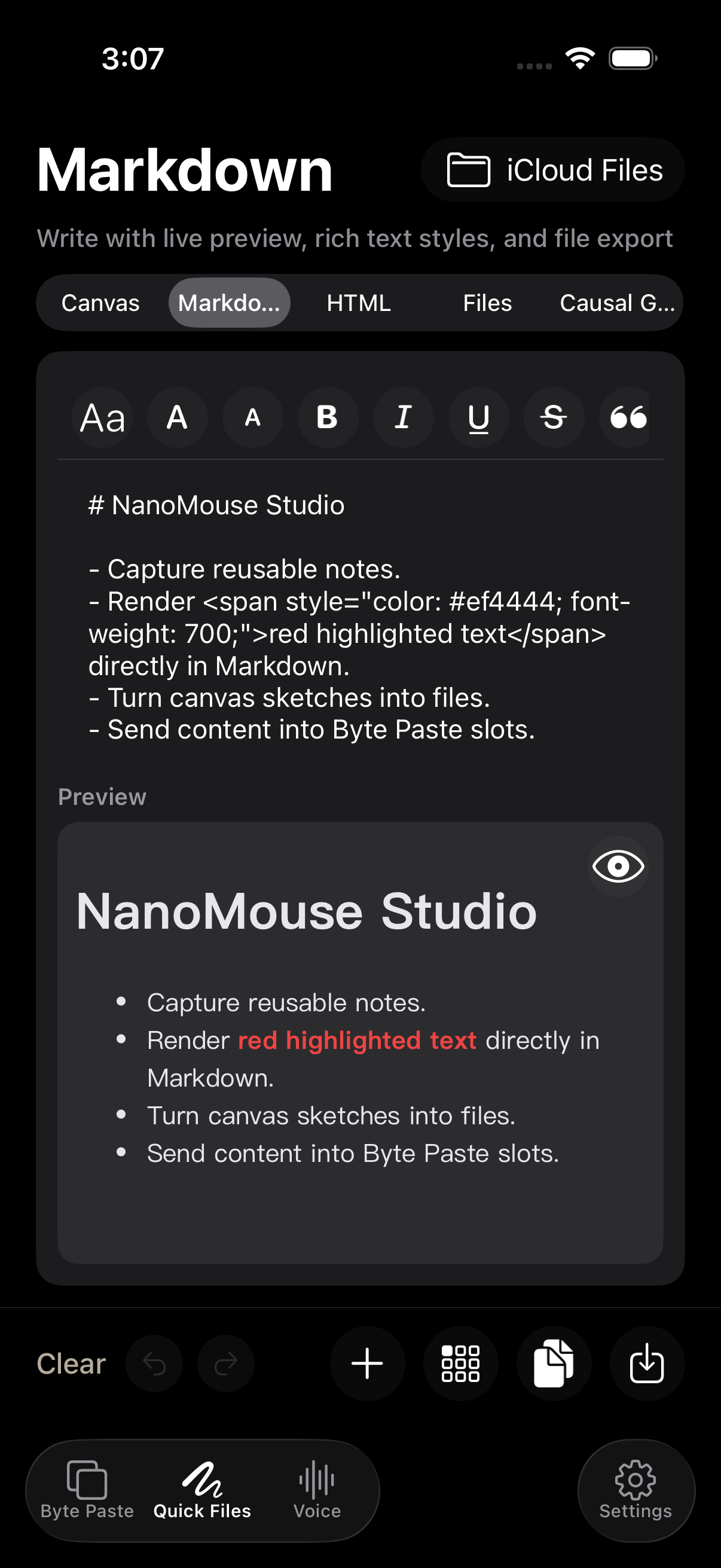
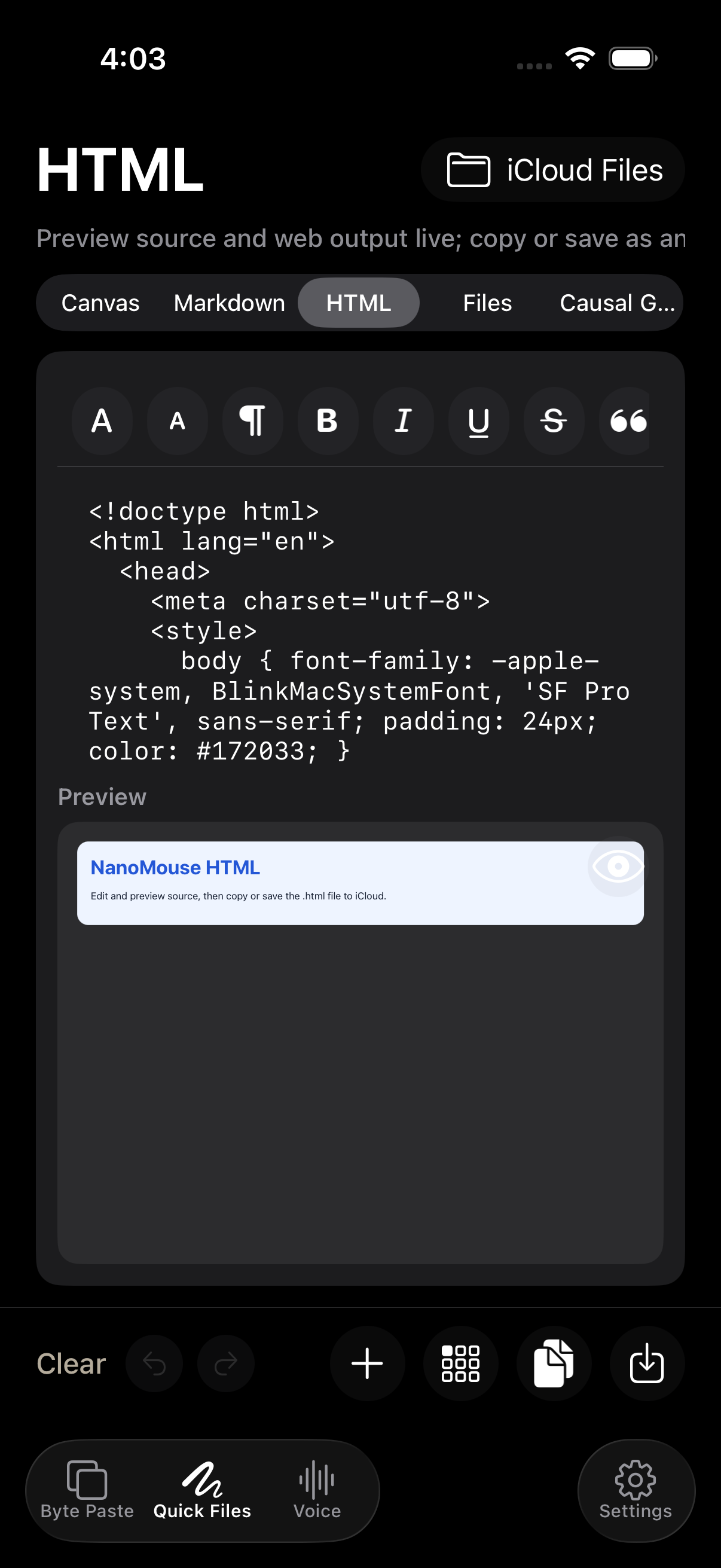
Edit and render fully in the main app; find and preview documents in the real keyboard.
| Tool | Content | Capabilities |
|---|---|---|
| Markdown | Notes, lists, instructions | Structured source, preview, and file saving |
| HTML | Web snippets and rich documents | Source editing, live WKWebView rendering, and file preview |
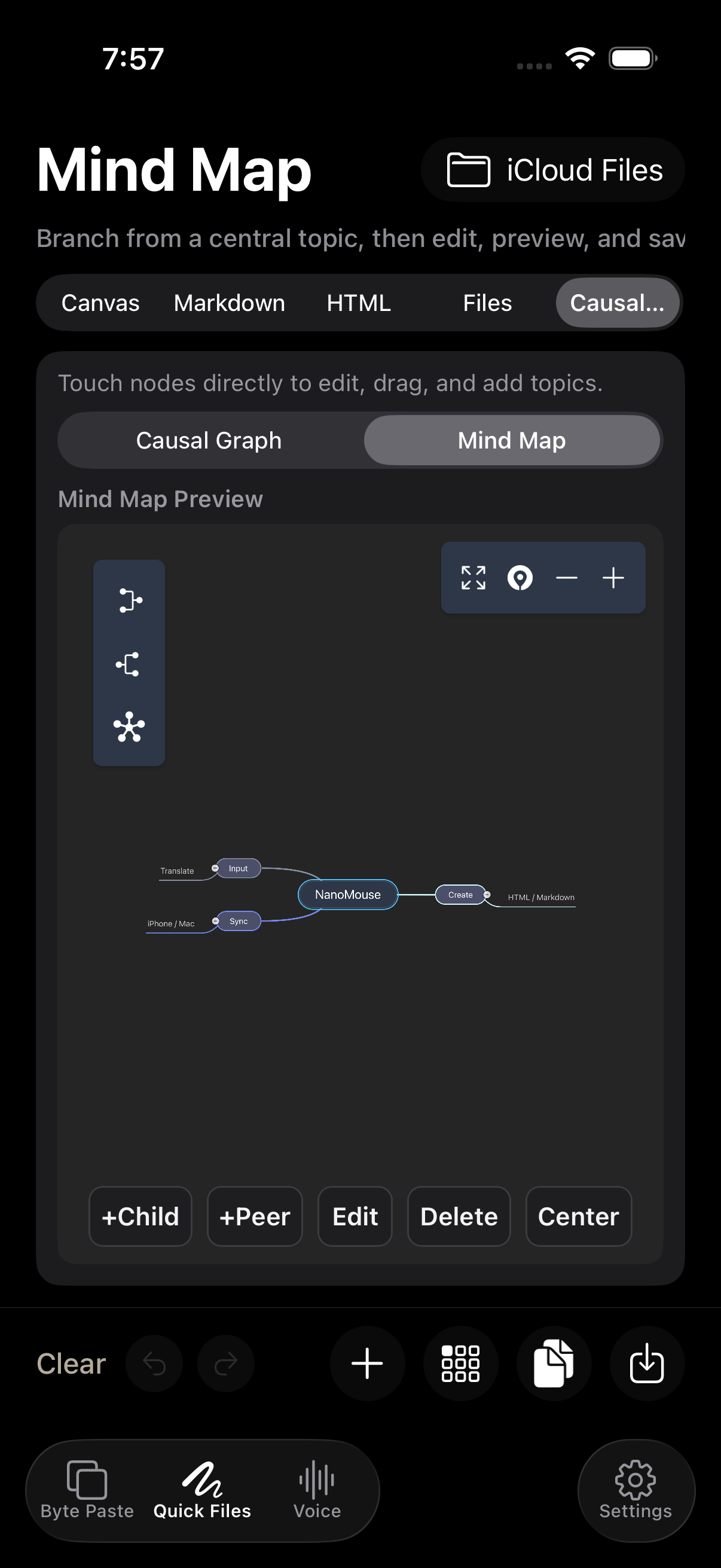
Causal diagrams and mind maps
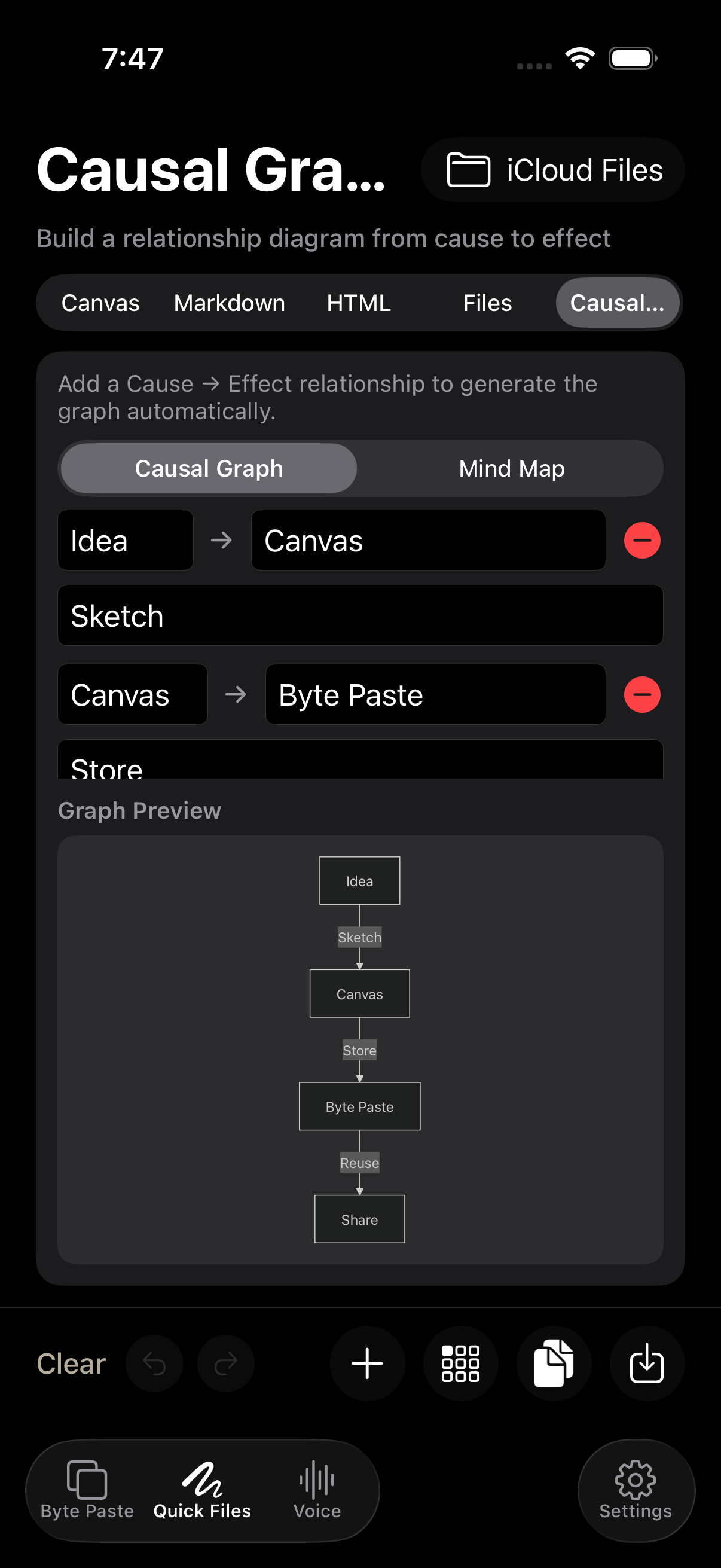
Use directed relationships for cause and effect, or branches for hierarchical thinking.
- Causal diagrams connect variables with explicit direction, notes, assumptions, and outcomes.
- Mind maps support child and sibling nodes, editing, deletion, centering, and saving.
- Turn voice or text into a visual structure in the main app.
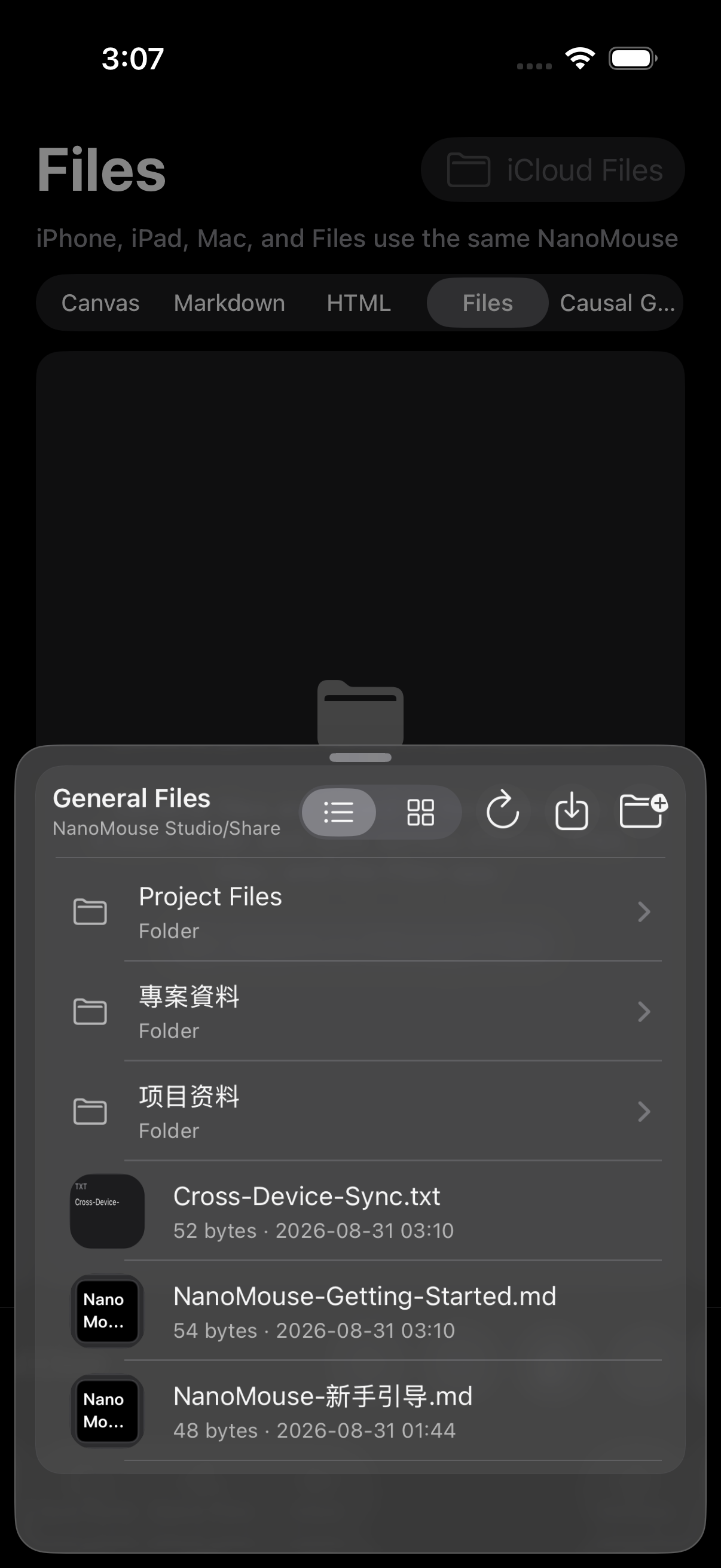
iCloud files across devices
Keep Markdown, HTML, and other documents in iCloud Drive for iPhone, iPad, Mac, and Files.
- The real system document browser can create folders, move, rename, and select documents.
- Keyboard Markdown and HTML previews read the corresponding document directory.
- iCloud Drive documents are a different storage path from CloudKit records used by Byte Paste.
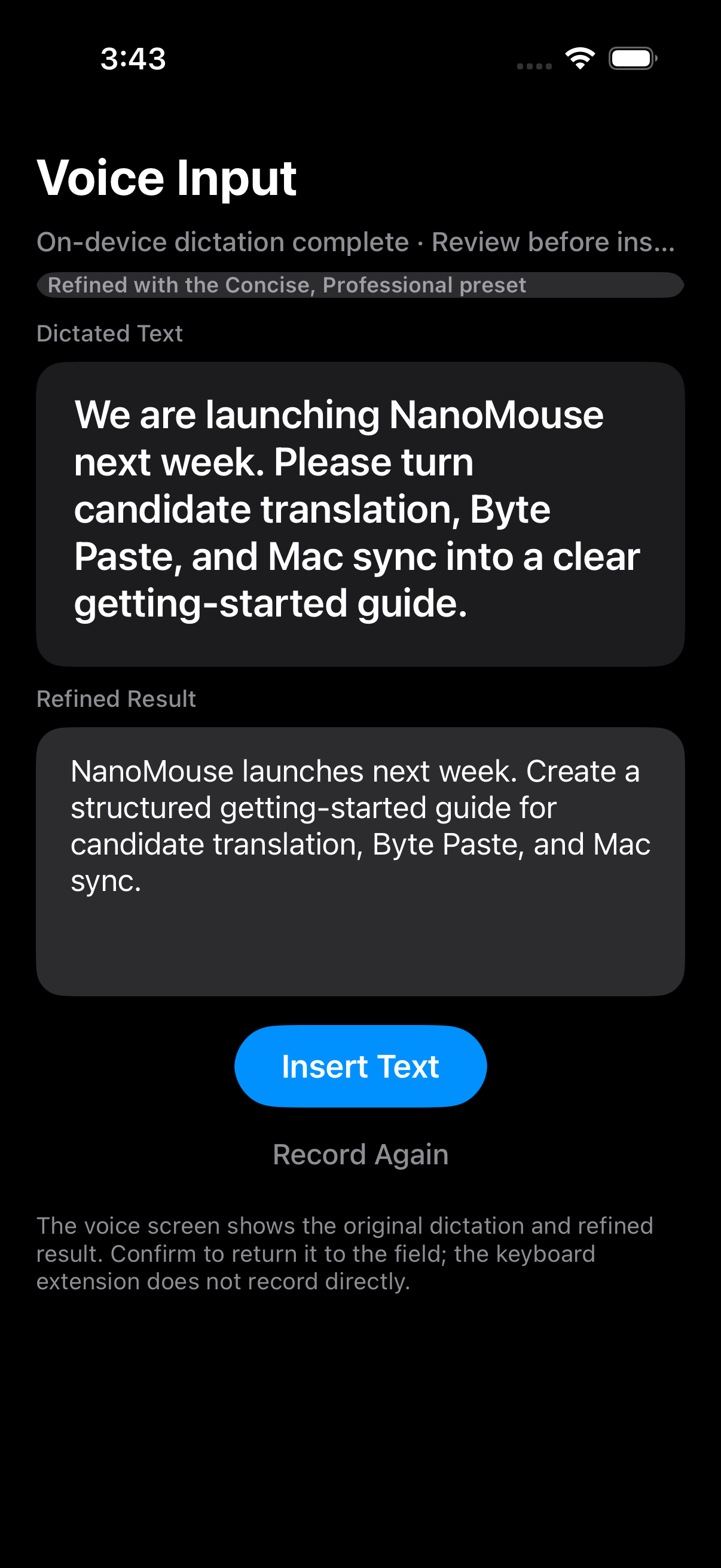
Voice: start from the keyboard, recognize in the app
Dictate long sentences or ideas, review the result, and return text to the original flow.
- Grant microphone and speech-recognition access on first use.
- Tap Voice in the keyboard; the main app opens to record and recognize audio.
- Review original dictation and the refined result, then insert, copy, or share.
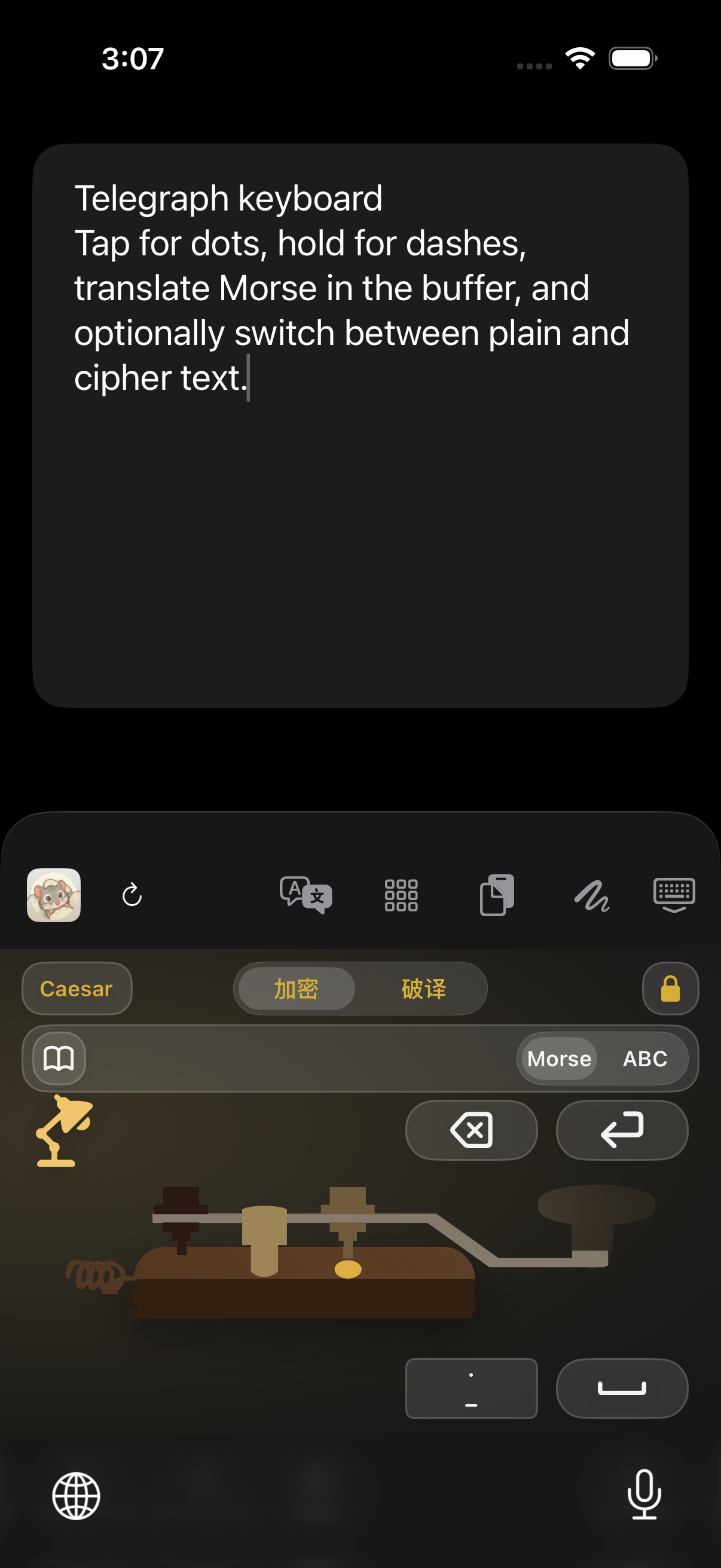
Telegraph keyboard and cipher system
Telegraph handles Morse input; Cipher transforms ordinary text with agreed settings.
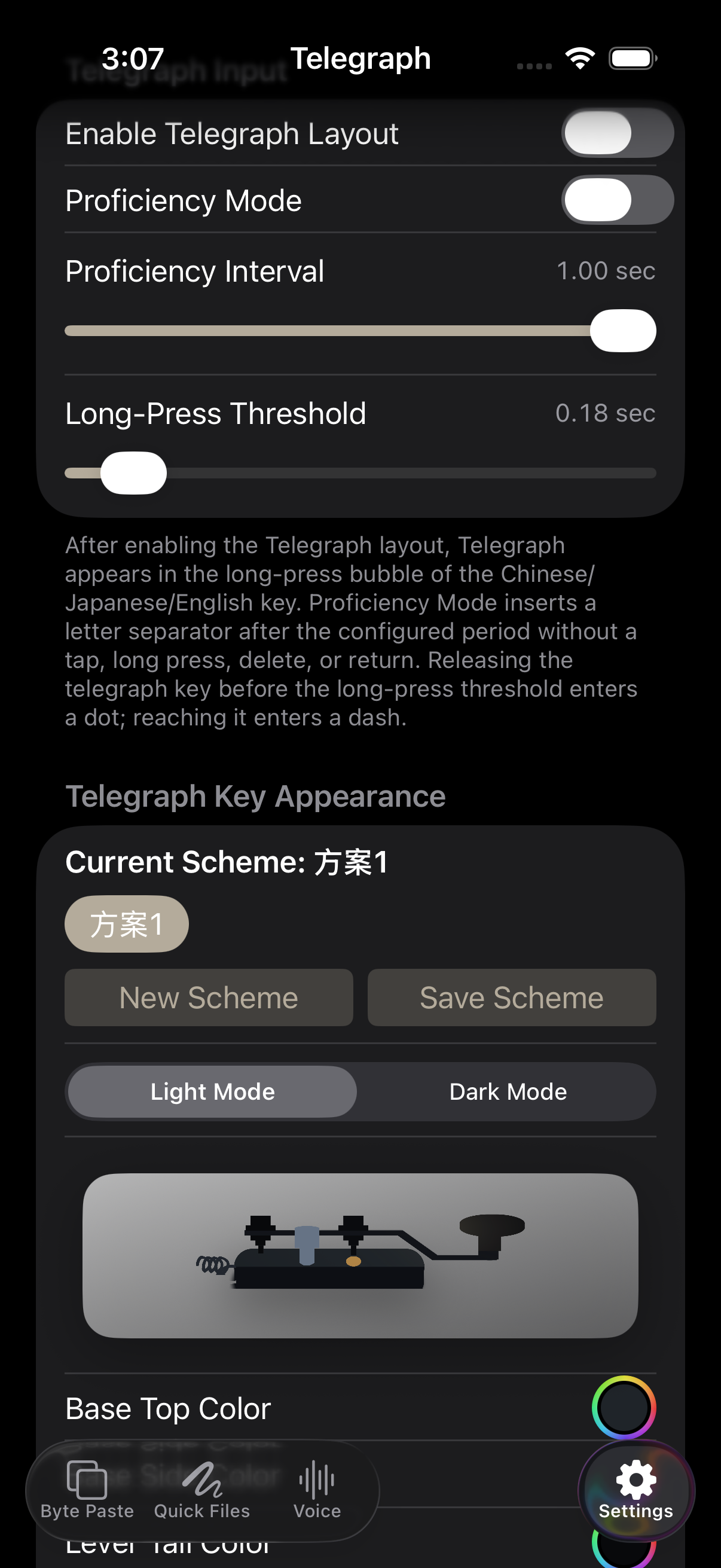
Telegraph
- Tap for a dot, hold for a dash, and translate Morse from the buffer.
- Enable Telegraph in input settings and decide whether the cipher system appears there.
- Morse encoding is not encryption.
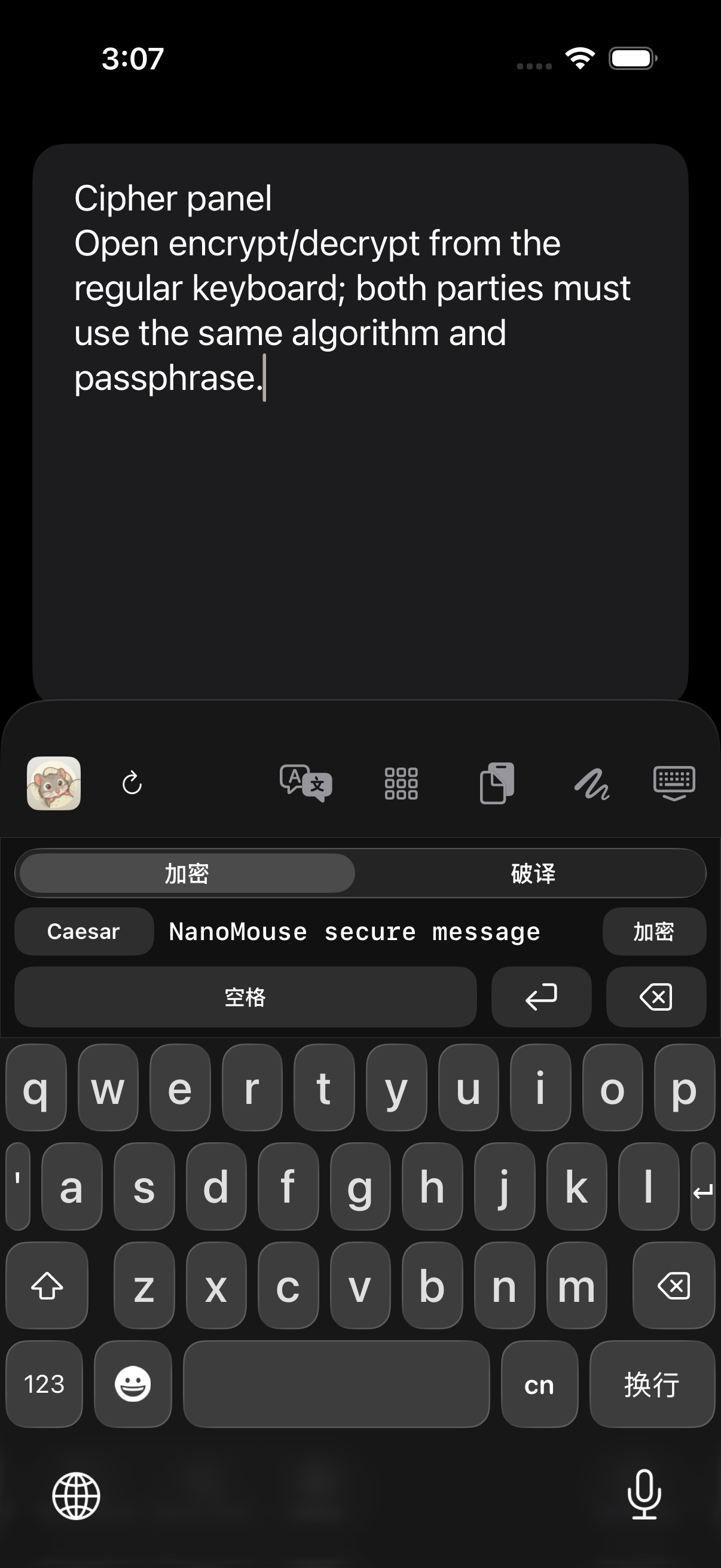
Cipher
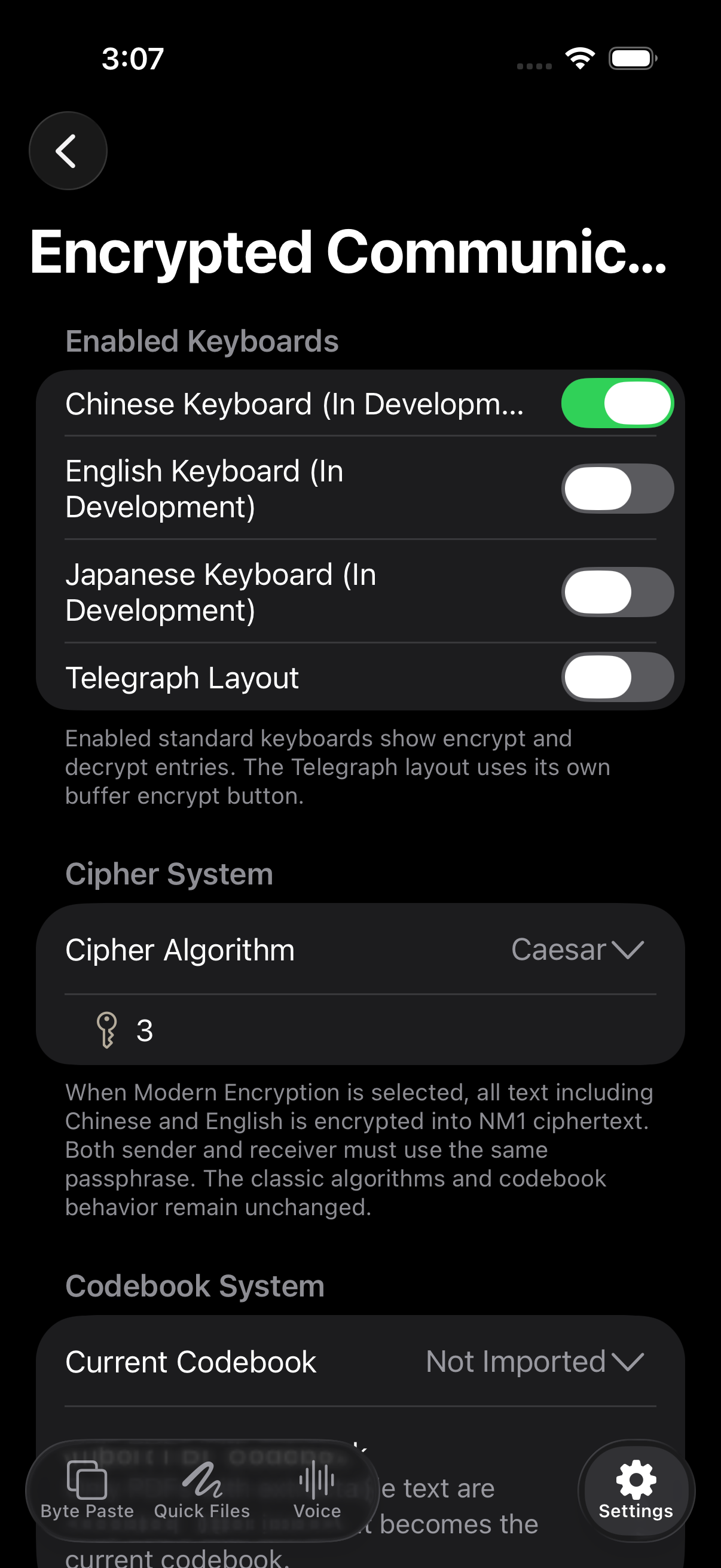
- Open Encrypt / Decrypt from Chinese, English, or Telegraph layouts.
- Both parties need the same algorithm, parameters, and passphrase; never send the passphrase with the ciphertext.
- This content transformation does not replace end-to-end encrypted communication or account security.
Appearance, motion, feedback, and icons
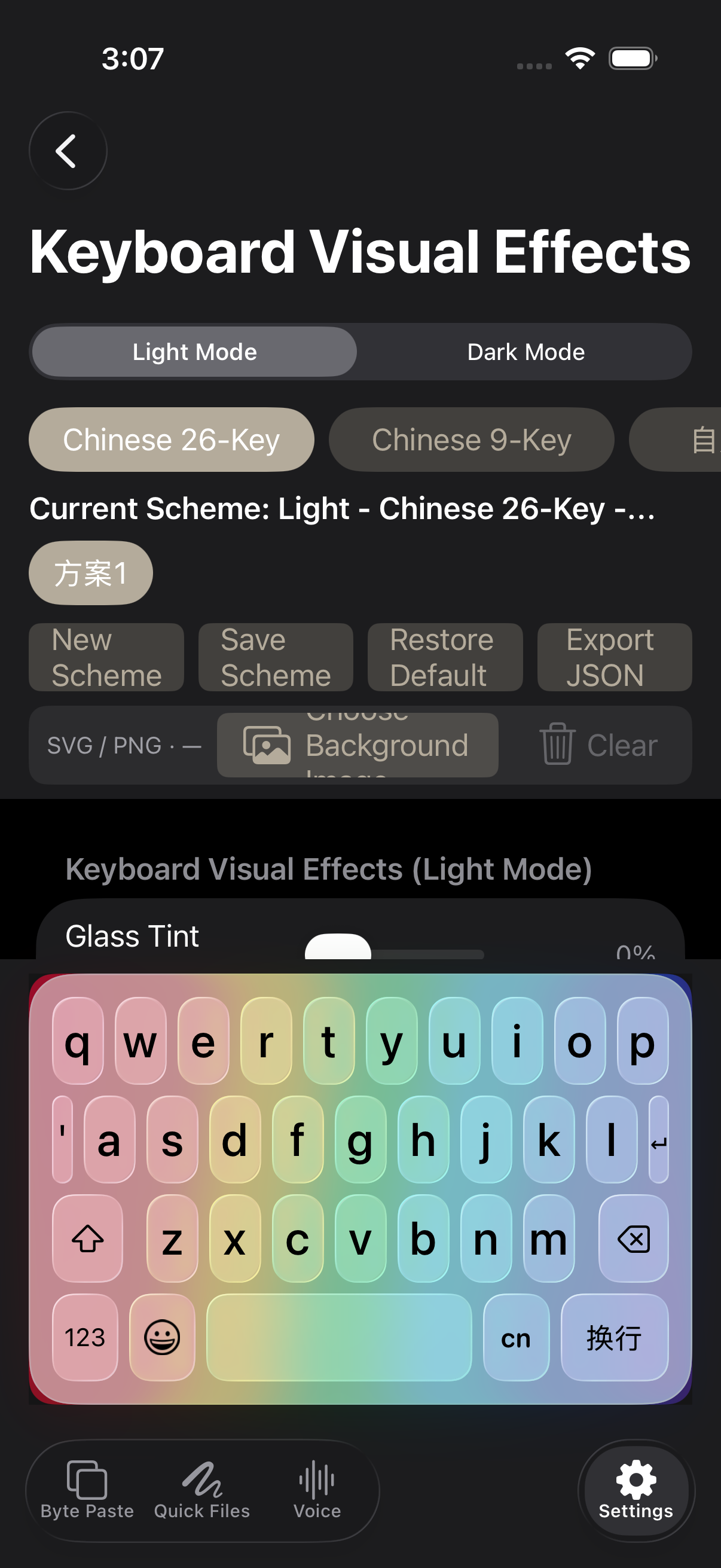
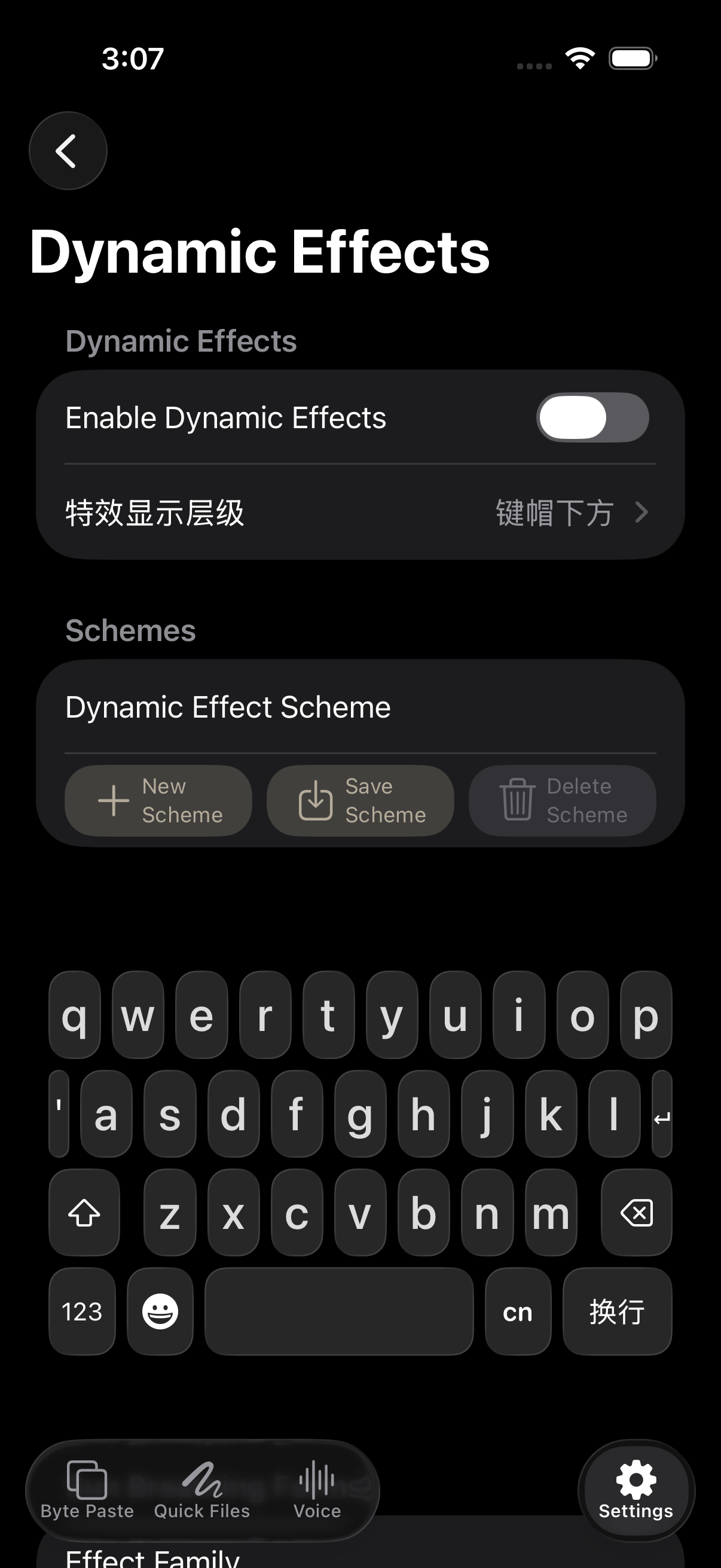
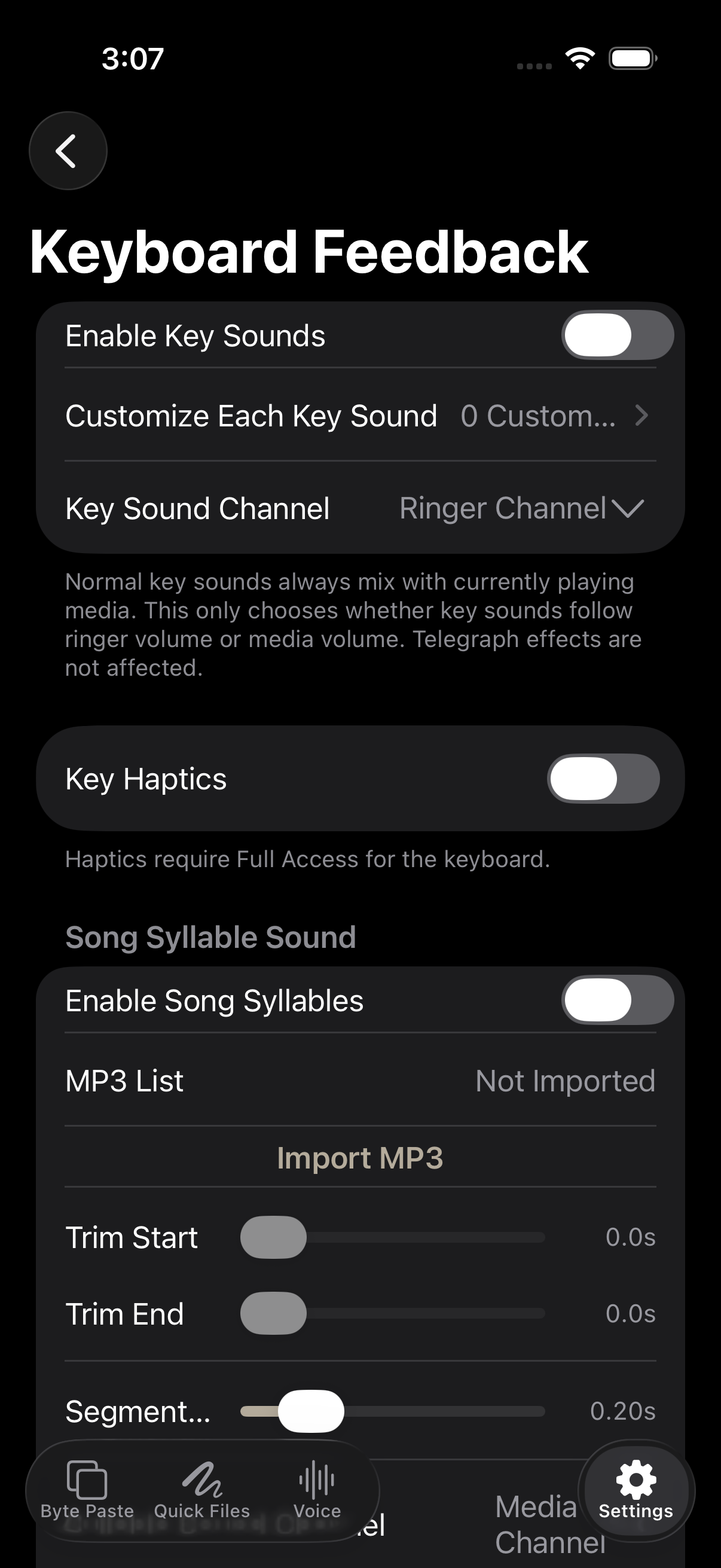
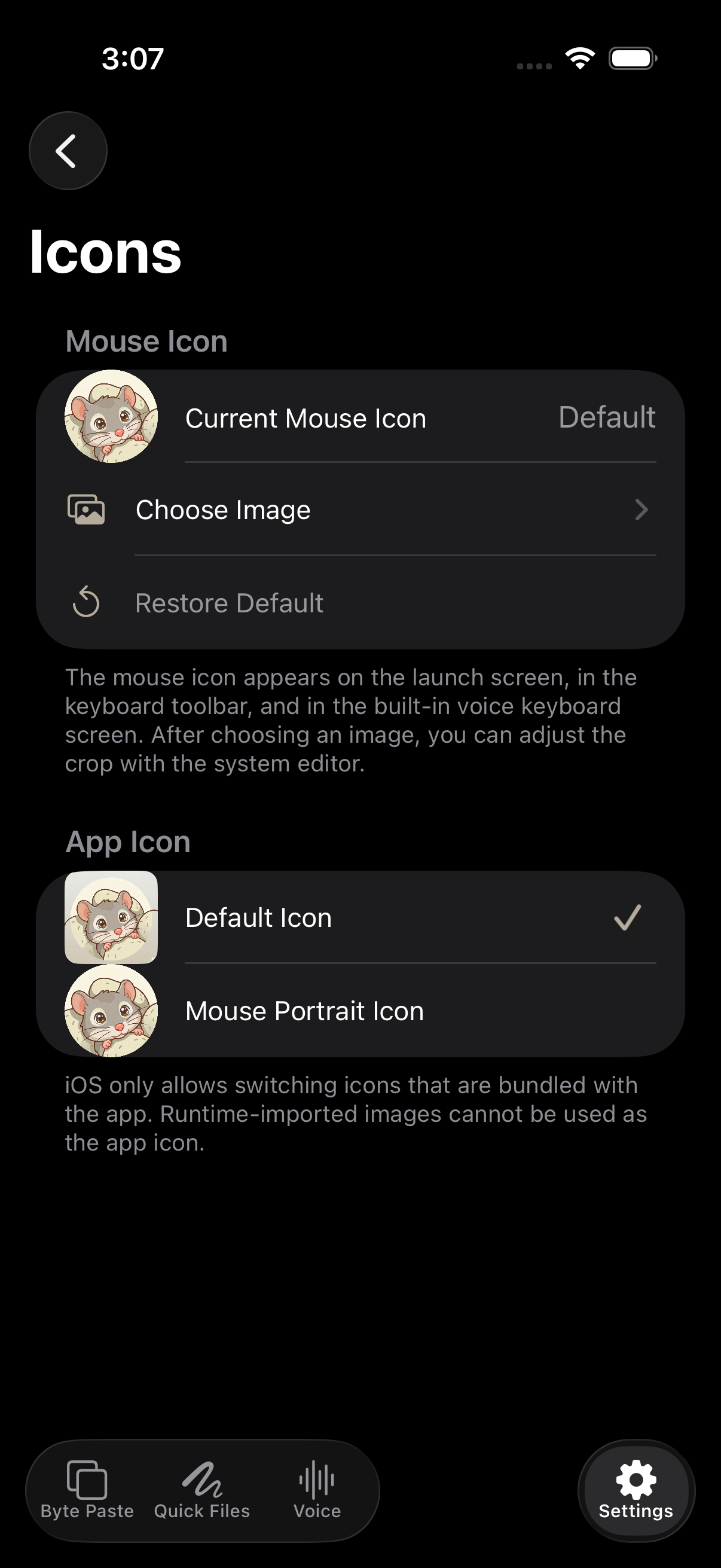
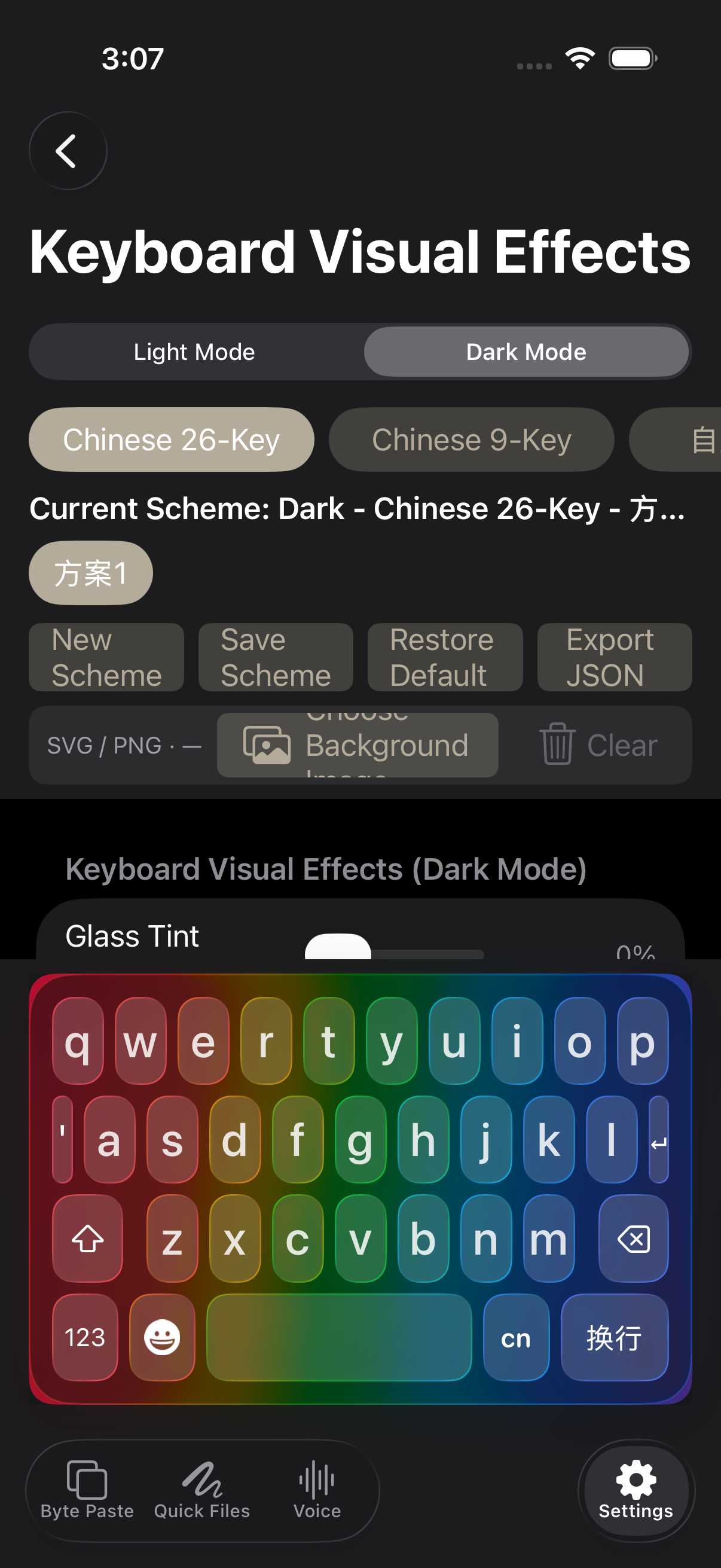
Customization combines background, glass, keys, type, effects, sound, haptics, and icons.
- Light / Dark and per-layout schemes: save separate designs for 26-key, 9-key, and custom layouts.
- Background and glass: use colors or SVG / PNG art and adjust glass tint.
- Keycaps and labels: tune fill, border, radius, shadow, font, and pressed state.
- Motion effects: select family, move, position, intensity, layering, and random playback.
- Feedback and icons: configure sound, volume, haptics, app icon, and toolbar icon.
- Import / Export: back up and move visual schemes as JSON.
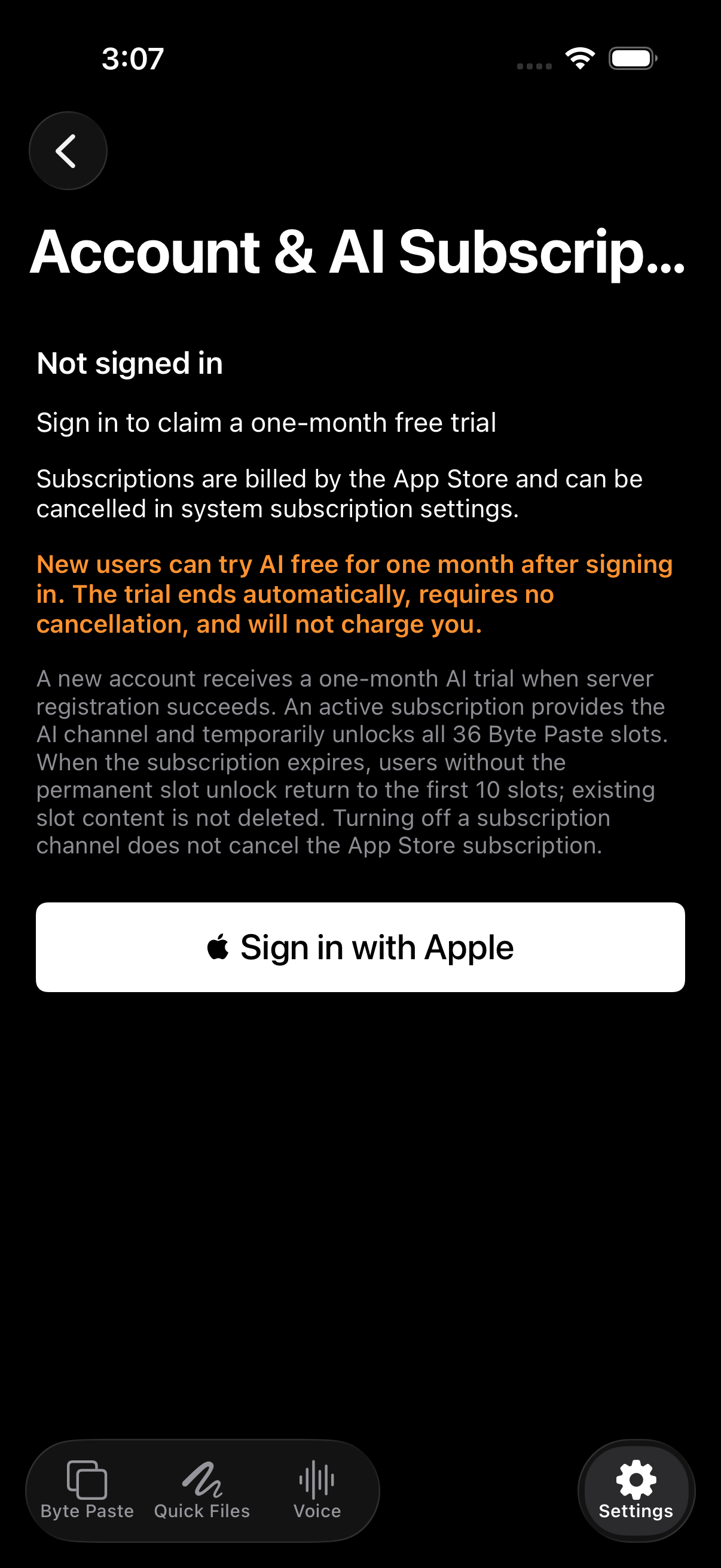
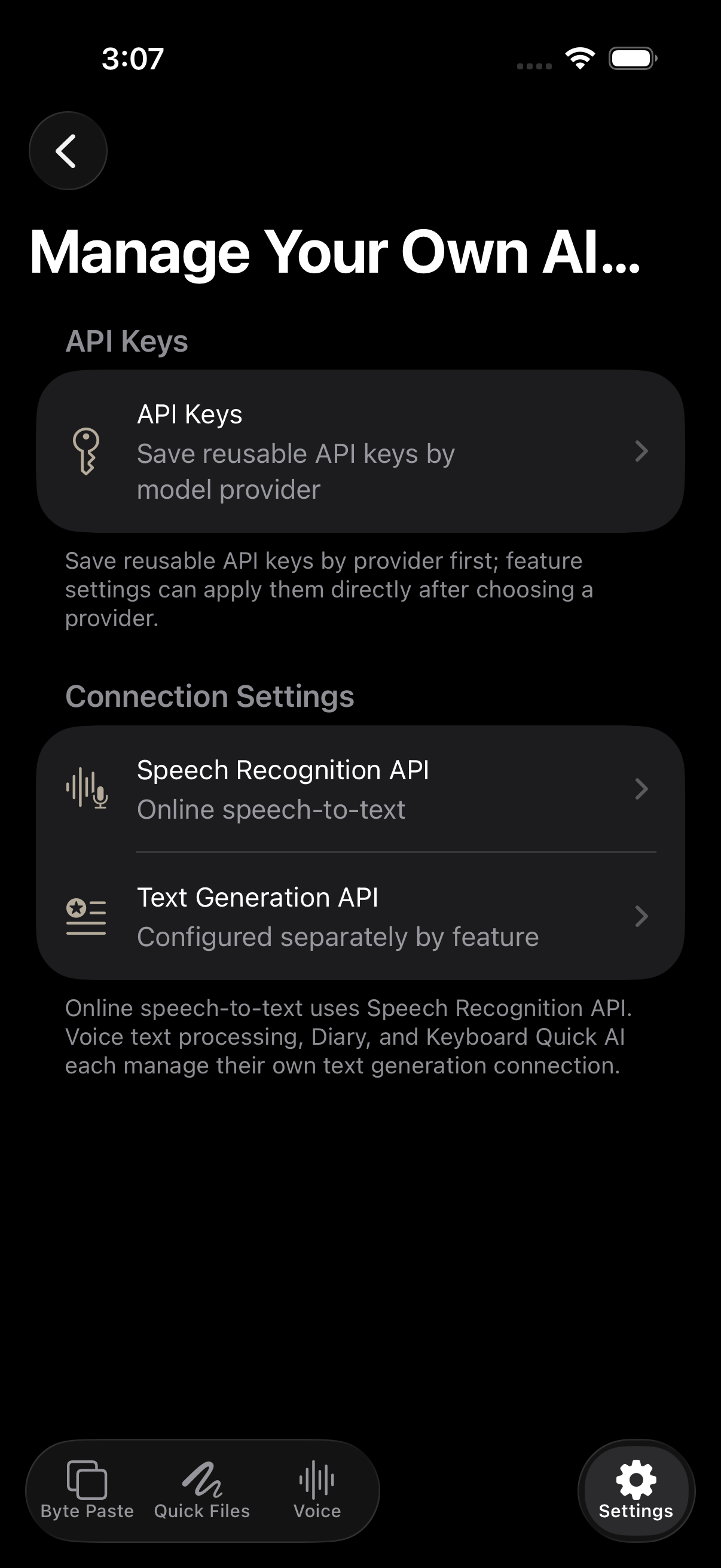
AI subscription, account, and BYOK
Use the built-in account for simple setup, or Bring Your Own Key for provider control.
| Method | Behavior | Best for |
|---|---|---|
| AI subscription / account | Sign in and use supported translation and rewrite features under a plan | Ready-to-use setup |
| BYOK | Configure provider, key, model, and request parameters; billing belongs to that provider | Users with their own model account |
| Apple system translation | Uses system language resources and is separate from the AI subscription | Candidate and offline-language scenarios |
Privacy, permissions, and sync boundaries
Each feature has its own data path and should be diagnosed independently.
- Full Access controls network, shared-container, and extension features; basic input should remain available without it.
- Same-Apple-ID Byte Paste and clipboard records use private CloudKit data synchronization; cross-Apple-ID clipboard uses invitation-controlled channels.
- CloudKit data-change subscriptions signal record changes and drive change-token download, merge, and UI publication.
- APNs user notifications are user-visible notification content, authorization, environment, and delivery. They do not explain Byte Paste or clipboard synchronization faults.
- iCloud Drive files, CloudKit records, AI requests, and microphone audio are separate data paths.
Frequently asked questions
Match a symptom to the right setting or system boundary.
Why is a tool missing from the toolbar?
Open Candidate Bar Settings, confirm Toolbar is enabled and the item is visible, then scroll farther right or hold the real toolbar preview to reorder it.
Why are flags or language directions missing?
Re-add the pair in Candidate Translation. Each row should show flags, language names, and direction; screenshots use rendered system Emoji assets.
What is the difference between Byte Paste and Clipboard?
Byte Paste is intentionally pinned and organized for long-term reuse. Clipboard is recent copied history. Both work in the app and real keyboard and can cooperate with Mac, but their data meaning and controls differ.
Does cross-Apple-ID clipboard share all my private slots?
No. Private same-account slots remain separate. Cross-account clipboard uses an explicit relationship and channel that can be disconnected independently.
Why does Voice open the main app?
That is an iOS third-party-keyboard boundary. The main app owns microphone permission, recording, and recognition.
How do I reset an unreadable appearance?
Open Keyboard Visual Effects, choose the matching light/dark mode and layout, and restore defaults. Reset dynamic effects and feedback separately.